ConductorOrchestrator

從 Conductor 遷移

Conductor Cloud 將於 11 月 13 日變為唯讀,11 月 20 日刪除資料。本指南說明需要儲存什麼,以及如何把對話、腳本和設定移到 Orchestrator,並附上你會看到的畫面。

nightly 新功能Orchestrator 可匯入你的 Conductor 對話(目前在 nightly 版本中)。

最後更新於 2026年11月11日

  • 11月13日星期五

    Conductor Cloud 變為唯讀。舊對話仍可閱讀與匯出。

  • 11月20日星期五

    Conductor Cloud 關閉,Conductor 開始刪除 Cloud 資料。

  • 2027 年初

    本機 Conductor App 在此之前仍可使用,之後開始逐步停止。

出自 Conductor 於 2026年11月4日 發布的加入 Meta 公告。Cloud 將於 2026年11月20日 關閉。

11 月 13 日之前要儲存什麼? 11月13日前

Conductor Cloud 即將關閉,我該怎麼辦?

請在 11 月 13 日(週五)之前於 Conductor 中儲存。Orchestrator 無法讀取 Conductor Cloud,留在那裡的內容將從 11 月 20 日起被刪除。

  1. 推送每個分支,包括未完成的工作

    在每個工作區的終端機中:

    git add -A && { git diff --cached --quiet || git commit -m "WIP: move from Conductor"; } && git push -u origin HEAD

    Git 不會推送 .env 這類被忽略的檔案,請另外複製。

  2. 轉移你想繼續處理的工作區

    在 Conductor 中Right-click a Cloud workspaceTransfer to local

    工作區及其對話會轉移到你的 Mac,Orchestrator 可以在那裡匯入它們。

  3. 匯出你的帳號資料

    在 Conductor 中SettingsAccountExport data

    請保留封存檔。

  4. 記下你的 Cloud 設定

    你的 Cloud Computer 安裝腳本、Cloud 環境變數、執行動作與例行任務。Conductor 會在儲存後隱藏密鑰,所以請從你存放它們的地方逐一取回。

我主要在 Mac 上用 Conductor,需要趕快搬嗎?

不用。本機 Conductor App 可以用到 2027 年初,它的檔案也會留在你的 Mac 上。準備好再搬就好。

能保留我的 Conductor 對話嗎? nightly 新功能

nightly 新功能對話匯入是 nightly 版本的新功能,穩定版還沒有。請從下載頁面取得 nightly 版本;它每晚會自動更新。 下載 nightly 版本

要怎麼把儲存庫和對話搬過來?

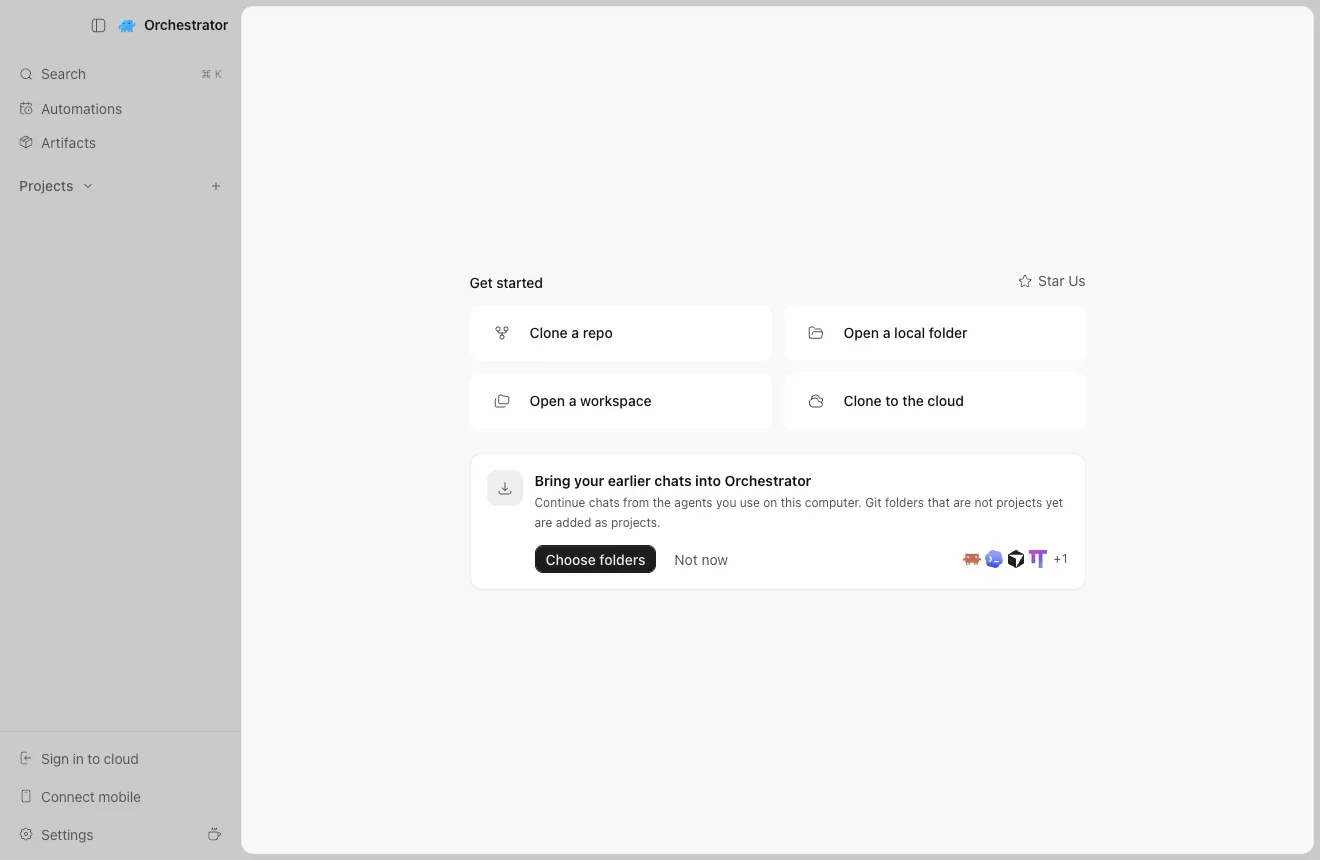
開啟 Orchestrator。首次啟動時,Home 會提議匯入你先前的對話,你選的每個資料夾都會成為一個專案,並帶上它在 Conductor、Claude Code 與 Codex 中的對話。

  1. 按一下 Choose folders

    Orchestrator 的 Home,顯示 Bring your earlier chats into Orchestrator 卡片與 Choose folders 按鈕
    首次啟動:Home 會提議匯入你先前的對話。
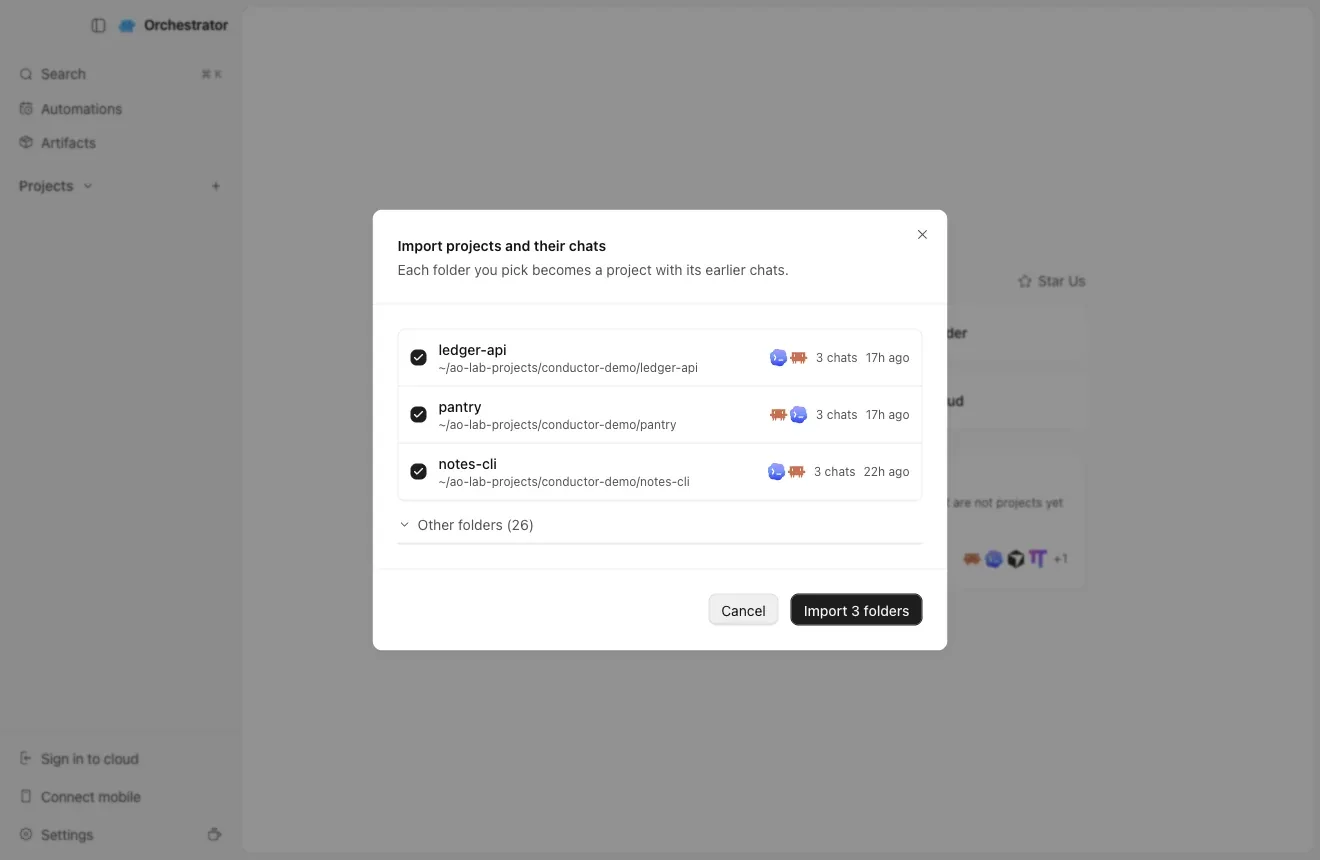
  2. 勾選你在 Conductor 中使用的儲存庫,然後按 Import

    請選擇儲存庫資料夾本身,而不是 ~/conductor/workspaces 底下的資料夾。

    Import projects and their chats 對話框,已勾選 ledger-api、notes-cli 與 pantry,並有 Import 3 folders 按鈕
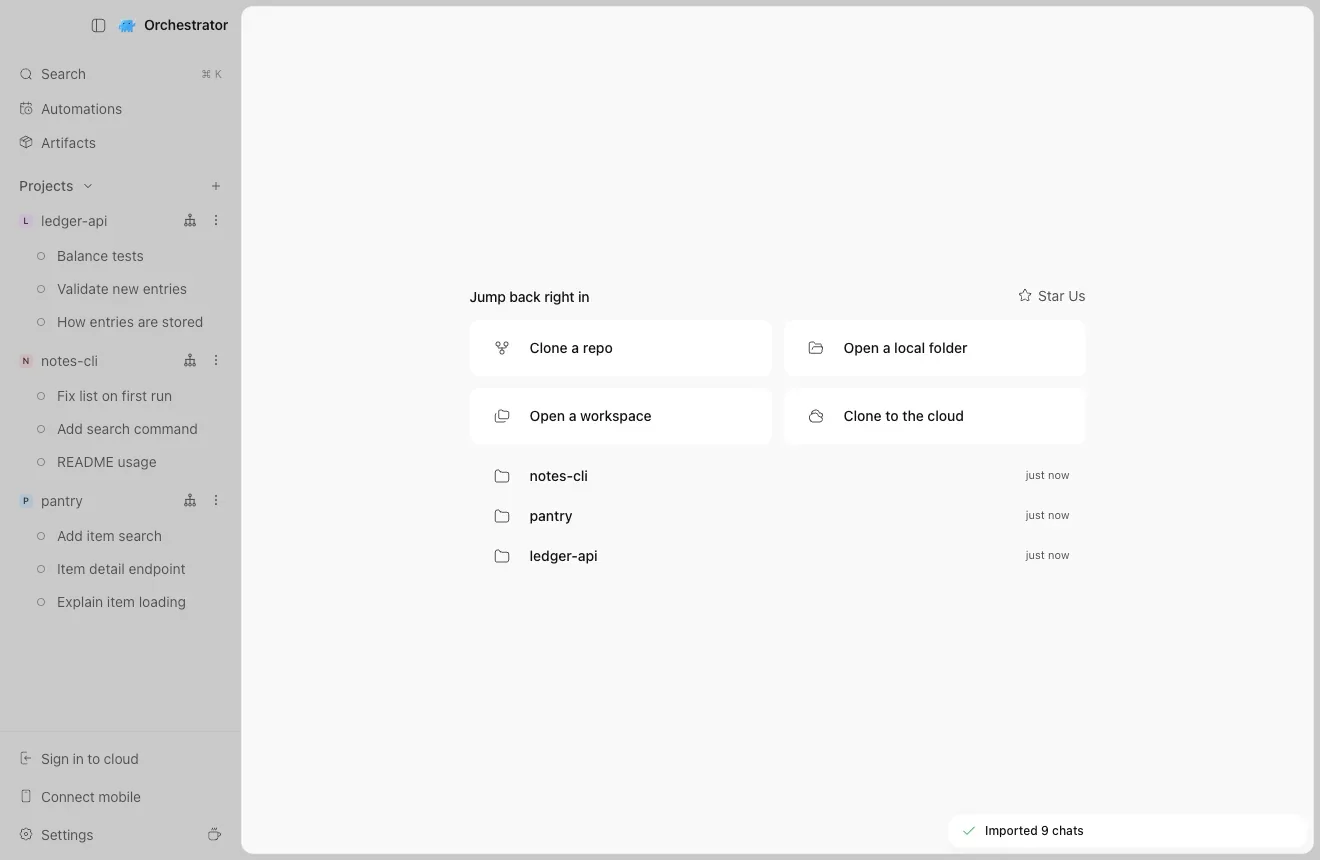
  3. 你的專案與對話已就緒

    對話會保留在 Conductor 中的標題。

    側邊欄顯示 ledger-api、notes-cli 與 pantry 三個專案及各自匯入的對話,並跳出 Imported 9 chats 提示
    三個儲存庫,九個對話。
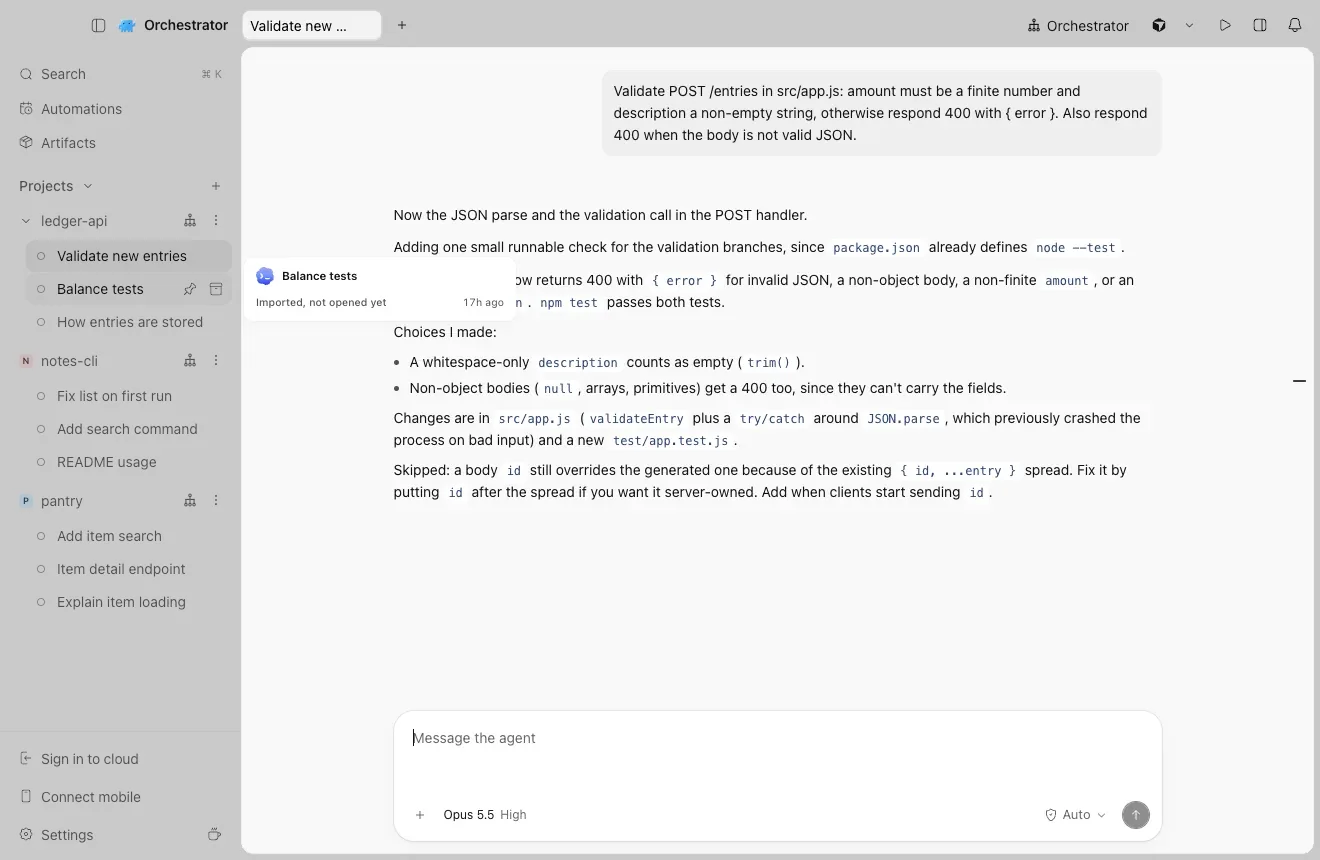
  4. 開啟對話,繼續工作

    完整的歷史紀錄都在。直接輸入即可繼續:Claude Code 與 Codex 會接續同一段對話。

    匯入的 Claude Code 對話,顯示先前的提示與回答,訊息框已就緒
    從 Conductor 工作區匯入的 Claude Code 對話。

在 Conductor 中封存工作區之前,先匯入它的對話,並把每個對話開啟一次。第一次開啟時,會把工作區中未提交的變更複製到工作階段。

我已經在用 Orchestrator 了,匯入功能在哪裡?

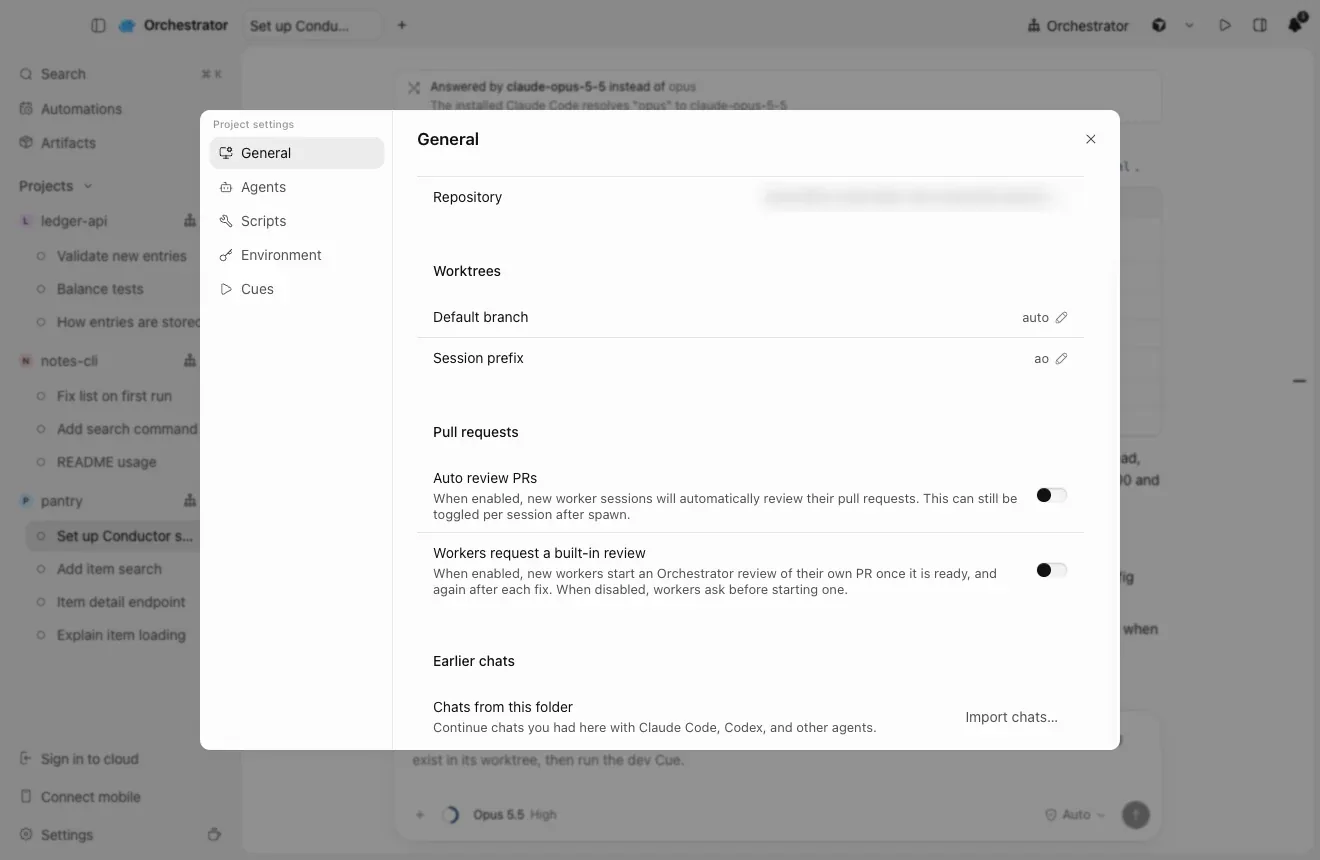
開啟專案的 Project settings → General,在 Earlier chats 下選擇 Import chats…。若只想新增儲存庫而不匯入對話,請在 Home 選擇 Open a local folder。

  1. 把對話匯入既有專案

    在 Orchestrator 中Project settingsGeneralEarlier chatsImport chats…

    Project settings 的 General 分頁,含 Earlier chats 區塊與 Import chats 按鈕

哪些對話會搬過來?

你在 Conductor 中的 Claude Code 與 Codex 對話,不論多久以前的都行。

  • 已封存的工作區,以及你已刪除的工作區資料夾中的對話,也都包含在內。
  • 如果某個 Claude 對話在你 Mac 上的 Claude Code 中沒有歷史紀錄(例如從 Cloud 轉移過來的對話),會根據 Conductor 本身的歷史紀錄重建。
  • 不包括:你在 Conductor 中刪除的對話,以及 Codex 在你 Mac 上已沒有歷史紀錄的 Codex 對話。

我的腳本、環境變數和設定會移到哪裡?

我的設定腳本、執行按鈕和環境變數怎麼辦?

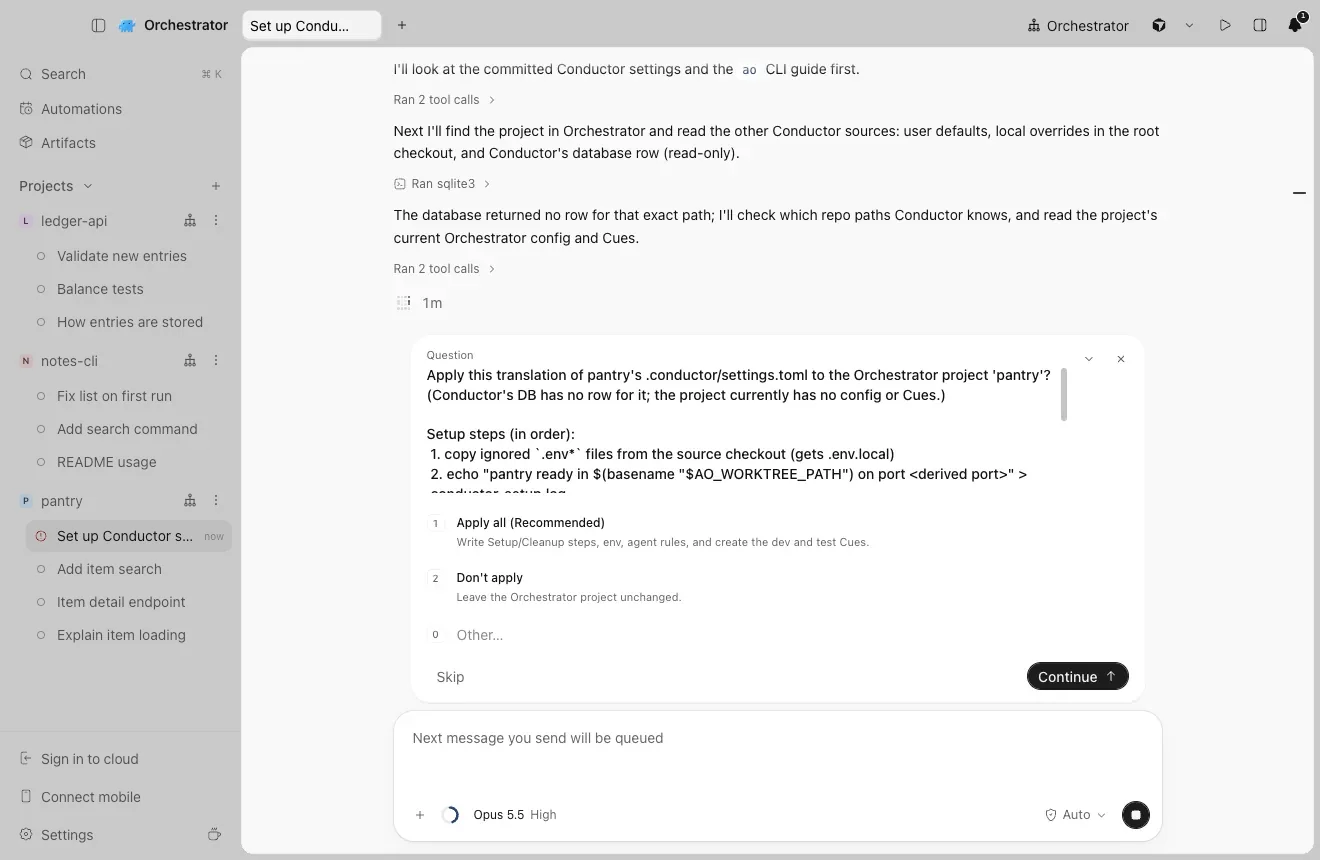
交給代理處理。在專案中開一個新對話,送出下面的提示。它會讀取你的 Conductor 設定並顯示計畫,在你選擇 Apply 之前不會做任何變更。

nightly 新功能使用 nightly 版本時,一行就夠了:

Set up this project's Conductor settings in Orchestrator.

使用穩定版時,貼上 Move my Conductor setup。它會逐一寫出相同的步驟。Set up Orchestrator 會幫你安裝桌面 App。

I'm moving this repository from Conductor to Orchestrator. Set up its Conductor settings in this Orchestrator project. Only read Conductor's files; never change them.
顯示完整提示詞 · 貼到 Claude Code、Codex 或任何程式碼代理
I'm moving this repository from Conductor to Orchestrator. Set up its Conductor settings in this Orchestrator project. Only read Conductor's files; never change them.

1. Run `ao project get $AO_PROJECT_ID --json` and `ao cue list --project $AO_PROJECT_ID --json`. Keep everything the project already has.

2. Read these, each later file overriding the earlier ones key by key: ~/.conductor/settings.toml (ignore models), conductor.json in the repository (only if .conductor/settings.toml is missing), .conductor/settings.toml, .conductor/settings.local.toml.

3. Map each setting:
   - scripts.setup -> a Setup step (--post-create)
   - scripts.archive -> a Cleanup step (--pre-remove)
   - each scripts.run action -> a command Cue: ao cue create --project $AO_PROJECT_ID --name <name> --command '<command and its args>' (when cwd is set, work out any port first, then add "cd -- <options.cwd> &&"; skip hidden actions)
   - environment_variables -> --env KEY=VALUE
   - prompts.general -> --agent-rules
   - the ignored files Conductor copies into each workspace (.worktreeinclude, else file_include_globs, else .env*) -> a first Setup step that copies them from "$AO_SOURCE_TREE_PATH" into the new worktree
   - anything else (cloud variables, git branch naming, run mode, other prompts) -> skip it and tell me

4. Orchestrator doesn't set CONDUCTOR_* variables. In Setup and Cleanup steps, replace $CONDUCTOR_ROOT_PATH with $AO_SOURCE_TREE_PATH, $CONDUCTOR_WORKSPACE_PATH with $AO_WORKTREE_PATH and $CONDUCTOR_WORKSPACE_NAME with $(basename "$AO_WORKTREE_PATH"). In a Cue, start the command with WT_ROOT=$PWD (the worktree root) before any cd, and use $WT_ROOT for the workspace path; if the action or the project environment already uses WT_ROOT or WT_PORT, pick other names. Replace $CONDUCTOR_DEFAULT_BRANCH with the branch name written out (the project's default branch; ask me if a command means another one). Replace $CONDUCTOR_PORT with a port worked out from the worktree root: in a Cue, also set WT_PORT=$((10000 + $(printf %s "$WT_ROOT" | cksum | cut -d' ' -f1) % 2270 * 10)) before any cd, and use $WT_PORT where the command used $CONDUCTOR_PORT; in a step, use the same expression with "$AO_WORKTREE_PATH". Both then give the same port for a worktree.

5. Show me the plan first: the Setup and Cleanup steps, Cues, variable names (not their values), agent rules and what you skip. Wait for my OK.

6. --post-create, --pre-remove and --env replace the whole list and --agent-rules the whole text, so pass the existing values together with the new ones in one `ao project set-config $AO_PROJECT_ID` call. Then create the Cues, and tell me to check Project settings -> Scripts, Environment and Cues.
  1. 代理先顯示計畫

    它會讀取 .conductor/settings.toml、settings.local.toml、conductor.json、~/.conductor/settings.toml,以及 Conductor App 中儲存的腳本。在你選擇 Apply 之前,什麼都不會變更。

    代理詢問:Apply this translation of pantry's settings? 選項為 Apply all 與 Don't apply
    Setup 與 Cleanup 步驟、Cue、變數與代理規則,以及跳過的項目。
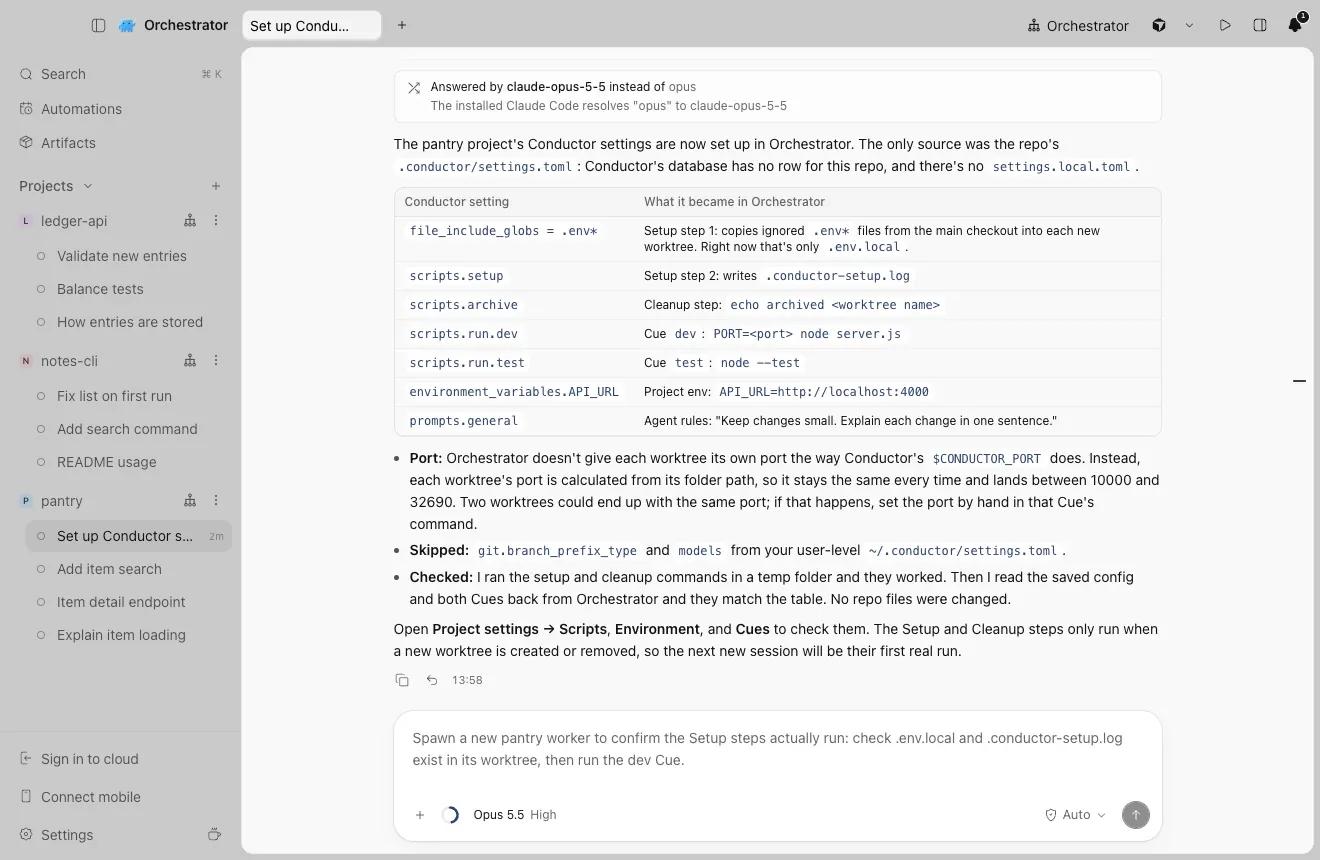
  2. 它套用計畫並做出總結

    代理的總結表,列出每項 Conductor 設定在 Orchestrator 中對應的結果
    每項 Conductor 設定以及轉換後的結果。
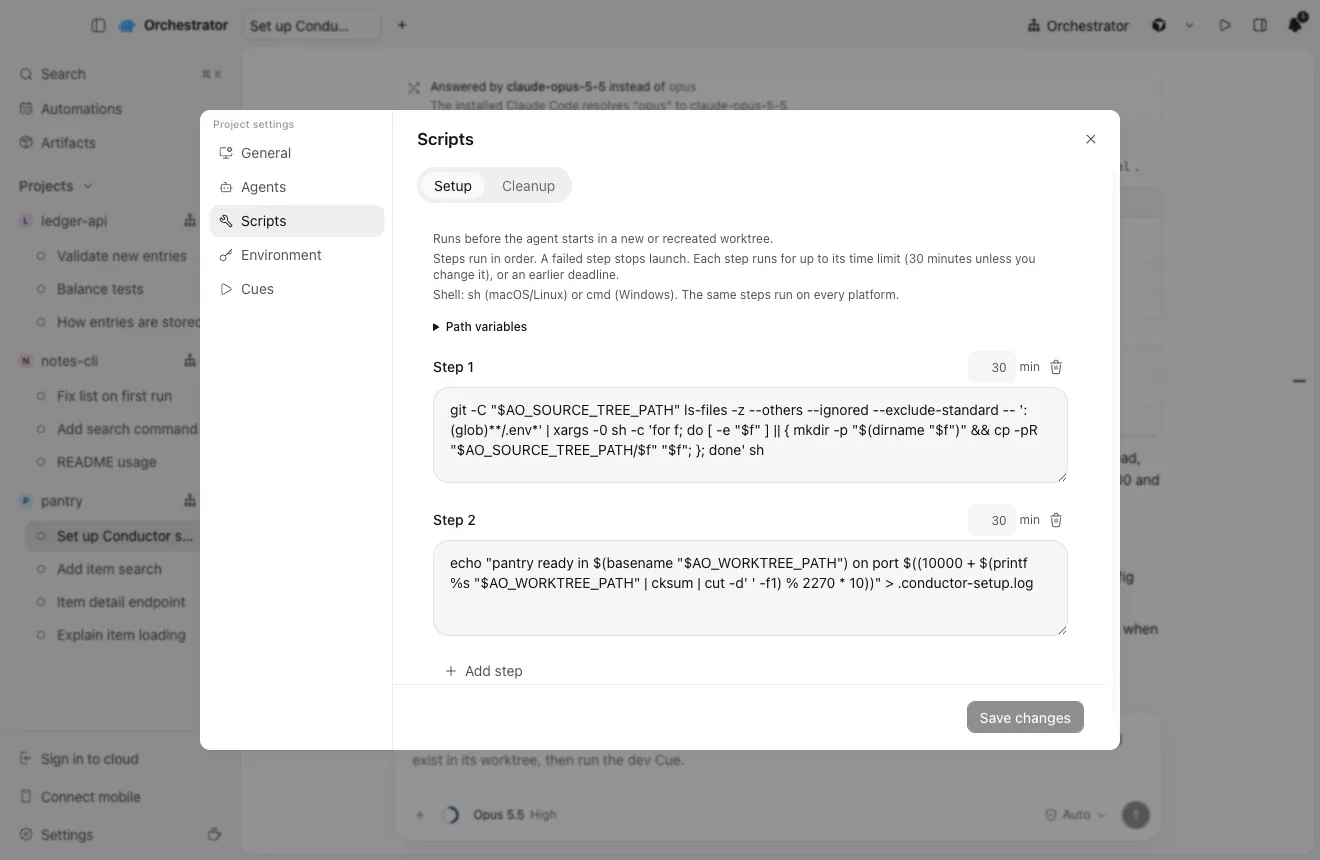
  3. 在 Project settings 中檢查結果

    在 Orchestrator 中Project settingsScripts · Environment · Cues

    Scripts 分頁:Setup 第 1 步複製 .env 檔案,第 2 步執行設定腳本

每項 Conductor 設定會放到哪裡?

設定腳本與封存腳本會變成 Setup 與 Cleanup 步驟,每個執行動作變成一個指令 Cue,環境變數放進專案的 Environment,通用提示則變成代理規則。

在 Conductor 中在 Orchestrator 中
設定腳本一個 Setup 步驟ao project set-config --post-create
封存腳本一個 Cleanup 步驟ao project set-config --pre-remove
執行動作每項對應一個指令 Cueao cue create --command
環境變數專案的 Environmentao project set-config --env KEY=VALUE
通用提示代理規則ao project set-config --agent-rules
Conductor 複製到工作區中的 .env 檔案一個 Setup 步驟,把它們複製到每個新的 worktree

我的腳本用了 $CONDUCTOR_PORT 和 $CONDUCTOR_WORKSPACE_PATH。

Orchestrator 不會設定 CONDUCTOR_* 變數,所以代理會改寫它們。$CONDUCTOR_WORKSPACE_PATH 改為 $AO_WORKTREE_PATH。至於 $CONDUCTOR_PORT,它會依 worktree 資料夾推算出固定的連接埠,就像下方的 dev Cue。如果兩個 worktree 拿到相同的連接埠,請在那條指令中手動設定連接埠。

在 Conductor 中在 Orchestrator 中
$CONDUCTOR_ROOT_PATH在 Setup 與 Cleanup 步驟中使用 $AO_SOURCE_TREE_PATH
$CONDUCTOR_WORKSPACE_PATH步驟中用 $AO_WORKTREE_PATH,Cue 中用 $PWD
$CONDUCTOR_WORKSPACE_NAME$(basename "$AO_WORKTREE_PATH")
$CONDUCTOR_PORT依 worktree 資料夾推算出的固定連接埠
$CONDUCTOR_DEFAULT_BRANCH直接寫明專案的預設分支
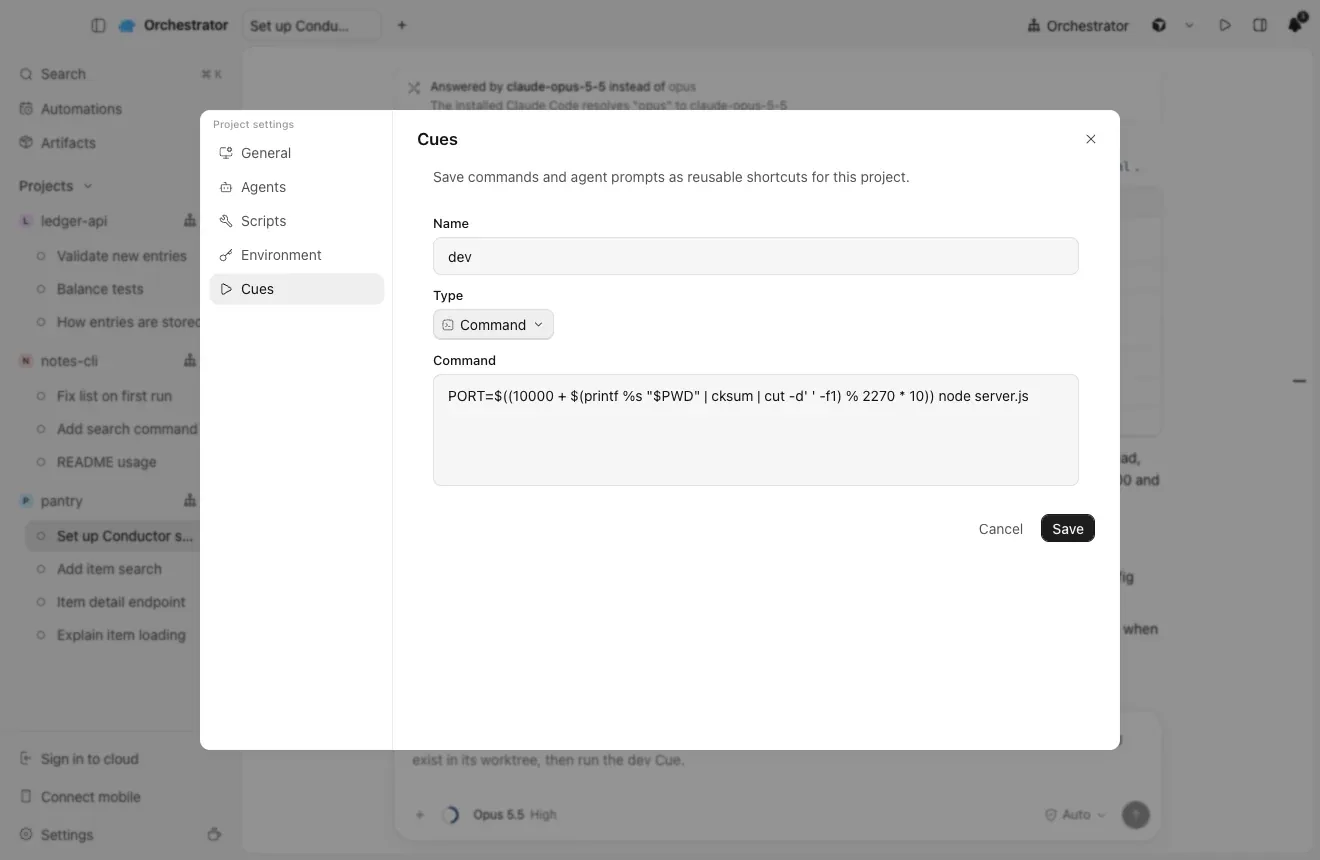
  1. 一個 Cue,連接埠依資料夾推算

    dev Cue:一條指令,在依 worktree 資料夾推算出的連接埠上啟動伺服器

如何讓 Cloud 上的工作繼續進行?

我在 Conductor Cloud 上的工作怎麼辦?

用同一個 GitHub 儲存庫建立 Cloud 專案,把 Cloud 設定複製進去,再在每個已推送的分支上啟動一個工作階段。

  1. 用同一個 GitHub 儲存庫建立 Cloud 專案

    在 Orchestrator 中Sign in to cloudClone to the cloud

    登入 Orchestrator,然後選擇 Clone to the cloud。和 Conductor Cloud 一樣,每個工作階段都有自己的遠端工作區。

    Sign in to cloud 位於側邊欄底部。

  2. 手動把 Cloud 設定複製到 Project settings

    用 $AO_WORKTREE_PATH 取代 $CONDUCTOR_ROOT_PATH 和 $CONDUCTOR_WORKSPACE_PATH,用 $AO_SESSION_ID 取代 $CONDUCTOR_WORKSPACE_NAME。Conductor Cloud 執行的是 Amazon Linux,所以請檢查 dnf install 之類的指令。

  3. 從上次停下的地方繼續

    在每個已推送的分支上啟動一個工作階段。已轉移到 Mac 的工作區,請依第 02 節的方式匯入對話。仍在 Conductor Cloud 中的對話無法繼續,所以請保留匯出的資料。

每項 Conductor Cloud 設定的去向

在 Conductor Cloud 中在 Project settings 中
Cloud Computer 安裝腳本,接著是儲存庫的設定腳本Scripts → Setup
封存腳本Scripts → Cleanup
Cloud 環境變數與密鑰Environment
執行動作每項對應一個 Cue
通用提示Instructions

Orchestrator Cloud 能給我什麼?

Orchestrator Cloud 在雲端沙箱中執行你的代理,闔上筆電後工作仍會繼續。它是一項獨立產品,而不是 Conductor Cloud 的翻版。

  • 闔上筆電,代理照樣執行

    每個雲端工作階段都在 Freestyle 或 Coder(包括你自己部署的 Coder)上的獨立沙箱中執行。閒置的沙箱會暫停,你回來時再繼續。

  • 代理照常用,登入憑證不進沙箱

    Claude Code、Codex、Cursor 與 OpenCode 在雲端執行。代理的登入憑證由 Orchestrator 的伺服器保管,模型透過 Proxy 存取,因此長期有效的登入憑證永遠不會留在沙箱中。

  • 雲端的編排代理

    你不在時,它會啟動工作代理的工作階段、傳訊息給它們、停止它們,並為它們開 Pull Request。

  • 從 Issue 到合併

    符合條件的 GitHub Issue 可以啟動工作代理的工作階段。「Automatically fix CI failures」與「Automatically fix review comments」讓 PR 持續推進,合併請求則等待「Approve and merge」或「Reject」。

  • 你的設定,在雲端同樣適用

    同樣的 Setup 與 Cleanup 指令碼也在雲端沙箱中執行,一個專案可以涵蓋多個儲存庫,也可以不含儲存庫。

限制與價格請見價格頁面。

團隊與手機

我們在 Conductor 裡共享對話,我也在用 iOS App。

Orchestrator Cloud 工作階段可以與隊友共享,iOS 與 Android 版 Orchestrator 行動 App 可以連到你的電腦,Automations 則可依排程執行工作階段。

在 Conductor 中在 Orchestrator 中
共享對話與在線狀態用 Share session 共享工作階段,可設為僅觀看或可撰寫,也可以共享整個專案。隊友會在 Shared with you 下找到它。登入後,Share 按鈕位於 Cloud 工作階段的頂部列。
Reassign to共享對話中的 Request turn 與 Take over
iOS AppConnect mobile,搭配 iOS 或 Android 版 Orchestrator App
例行任務自動化

共享功能適用於 Orchestrator Cloud 工作階段,且需要所有人都登入 Orchestrator。

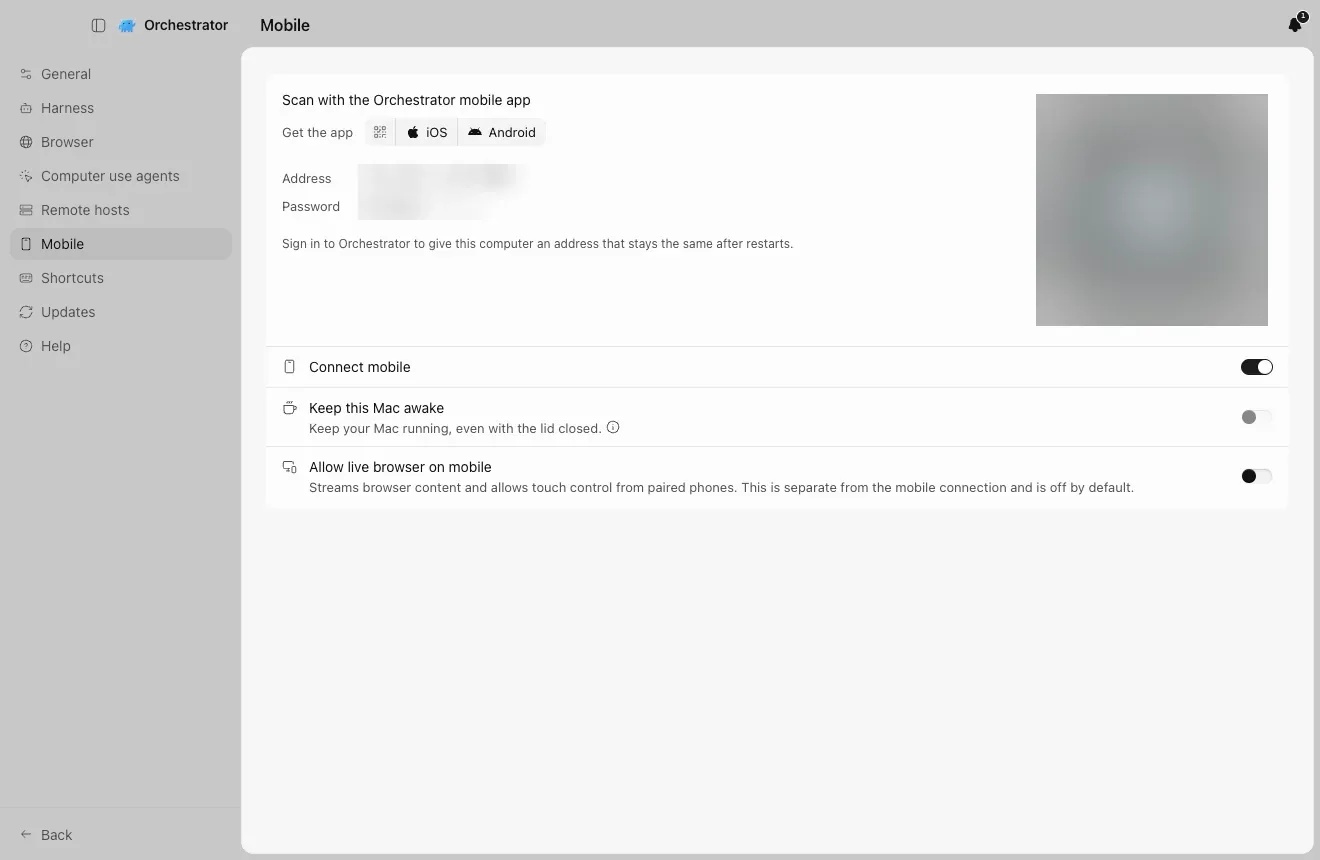
  1. iOS App:Connect mobile

    按一下側邊欄的 Connect mobile,再用 iOS 或 Android 版 Orchestrator 行動 App 掃描 QR 碼。

    Settings、Mobile:用 Orchestrator 行動 App 掃描,QR 碼、位址與密碼已模糊處理
    此截圖中的 QR 碼、位址與密碼已模糊處理。
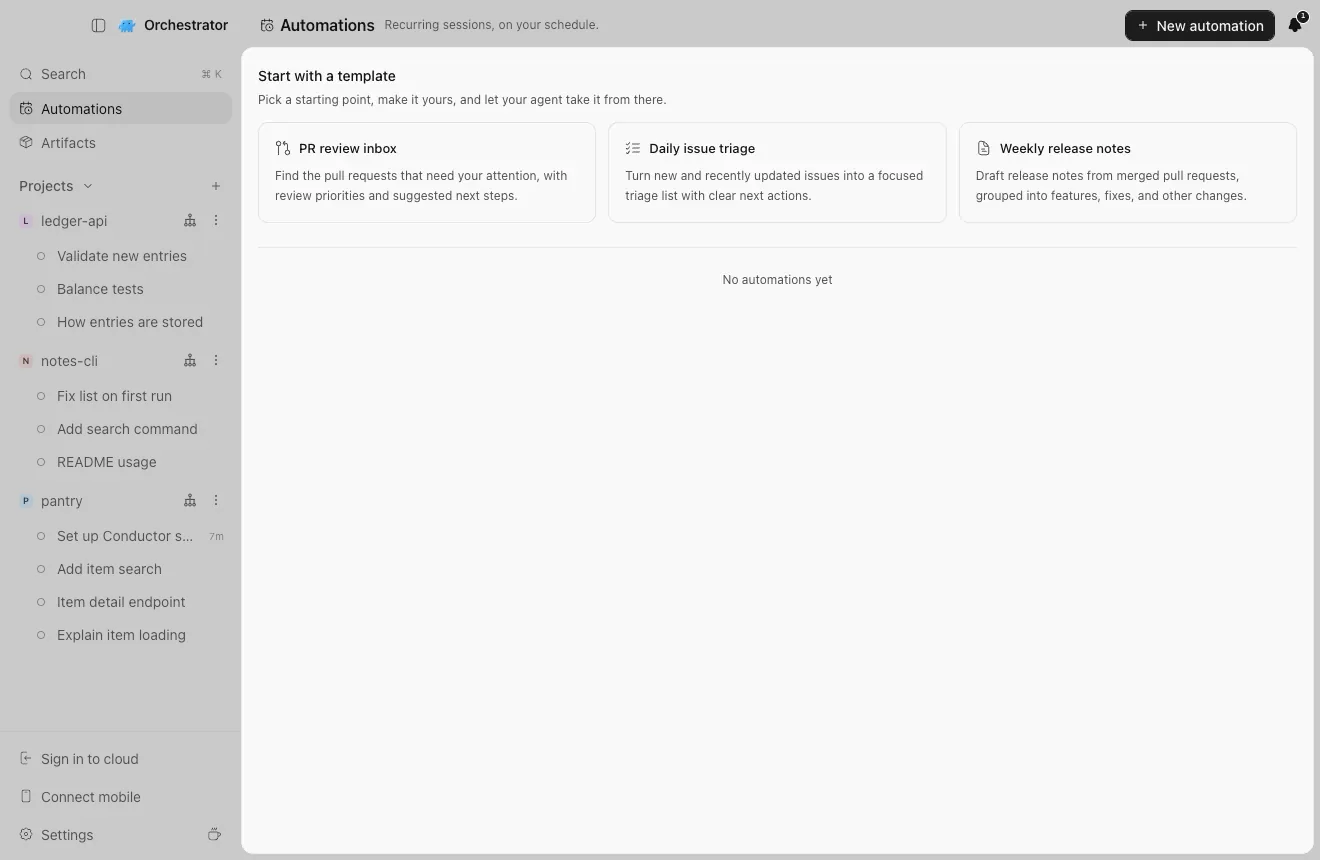
  2. 例行任務:Automations

    依你的排程定期執行的工作階段。可從範本或 New automation 開始。

    Automations 頁面,含範本與 New automation 按鈕
    Automations 位於側邊欄。

快速解答

Conductor 要關閉了嗎?

Conductor 於 2026 年 11 月 4 日宣布加入 Meta。Conductor Cloud 將於 11 月 13 日變為唯讀,並於 2026 年 11 月 20 日關閉。本機 Mac App 目前仍可使用,將於 2027 年初開始逐步停止。

Conductor Cloud 什麼時候關閉?我的資料會怎樣?

Conductor Cloud 將於 2026 年 11 月 13 日(週五)變為唯讀,並於 11 月 20 日(週五)關閉,屆時 Conductor 會開始刪除 Cloud 資料。請在 11 月 13 日之前推送你的分支、轉移想保留的工作區並匯出資料。

可以匯入我的 Conductor 對話嗎?

可以,在 Mac 上。Orchestrator 會匯入你在 Conductor 中的 Claude Code 和 Codex 對話,無論多久以前的都可以,每個對話都會成為一個可以繼續的工作階段。對話匯入是 nightly 版本的新功能。如果 Codex 在你的 Mac 上已沒有某個 Codex 對話的歷史記錄,該對話不會匯入。

如何遷移 Conductor 的 setup 腳本和環境變數?

把本頁的提示傳給你的代理。它會讀取你的 Conductor 設定並顯示計畫。你同意後,setup 和封存腳本會變成 Setup 和 Cleanup 步驟,執行動作會變成 Cues,環境變數會放入專案的 Environment。

Orchestrator 支援 Windows 和 Linux 嗎?

支援。Orchestrator 可在 macOS、Windows 和 Linux 上執行。Conductor 對話匯入和 Conductor 本身一樣僅限 Mac,因此在 Windows 或 Linux 上請設定相同的儲存庫,並繼續你已推送的分支。

Orchestrator 免費且開源嗎?

桌面版免費開源(Apache-2.0),本機代理數量不限。Orchestrator Cloud 的 Starter 為 $20/月,Pro 為 $40/月,Enterprise 依需求報價。外出時透過託管 HTTPS 通道用手機連到你的電腦,需要 Starter 以上方案。

Orchestrator 會修改我的 Conductor 檔案嗎?

不會。它只讀取 Conductor 的檔案與資料庫。幫你設定的代理同樣只會讀取。

我的 Conductor 工作區會被搬移嗎?

不會。Orchestrator 會為每個工作階段建立自己的 worktree 與分支,你的 Conductor 工作區會留在原處。

代理會跳過什麼?

沒有本機對應項目的設定,例如僅限 Cloud 的變數、Git 分支命名、執行模式,以及 Conductor 的模型選擇。在你套用之前,它會列出跳過的每一項。

Orchestrator 是 Claude 套殼嗎?

不是。它透過你已安裝並登入的 CLI 執行 38 款程式代理,用量由你自己的供應商帳戶計費。

Orchestrator 截圖攝於 2026 年 11 月 11 日,使用的是示範用的 Conductor 資料庫,內含三個儲存庫與九個 Claude Code 和 Codex 對話。Conductor 的選單路徑來自 Conductor 0.93.0 的更新紀錄。

說明

請在 Orchestrator Discord 提問。

整個團隊一起遷移?與創辦人預約一次設定通話,Orchestrator 團隊會和你一起完成設定。