ConductorOrchestrator

从 Conductor 迁移

Conductor Cloud 将于 11 月 13 日变为只读,11 月 20 日删除数据。本指南说明需要保存什么,以及如何把对话、脚本和设置迁移到 Orchestrator,并附上你会看到的界面。

nightly 新功能Orchestrator 可导入你的 Conductor 对话(目前在 nightly 版本中)。

最后更新于 2026年11月11日

  • 11月13日星期五

    Conductor Cloud 变为只读。旧对话仍可查看和导出。

  • 11月20日星期五

    Conductor Cloud 关闭,Conductor 开始删除 Cloud 数据。

  • 2027 年初

    本地 Conductor 应用在此之前仍可使用,之后开始逐步停止。

出自 Conductor 于 2026年11月4日 发布的加入 Meta 的公告。Cloud 将于 2026年11月20日 关闭。

11 月 13 日之前要保存什么? 11月13日前

Conductor Cloud 要关闭了,我该怎么办?

请在 11 月 13 日(周五)之前在 Conductor 中保存。Orchestrator 无法读取 Conductor Cloud,留在那里的内容将从 11 月 20 日起被删除。

  1. 推送每个分支,包括未完成的工作

    在每个工作区的终端中:

    git add -A && { git diff --cached --quiet || git commit -m "WIP: move from Conductor"; } && git push -u origin HEAD

    Git 不会推送 .env 这类被忽略的文件,请单独复制。

  2. 转移你想继续处理的工作区

    在 Conductor 中Right-click a Cloud workspaceTransfer to local

    工作区及其对话会转移到你的 Mac 上,Orchestrator 可以在那里导入它们。

  3. 导出你的账户数据

    在 Conductor 中SettingsAccountExport data

    请保留归档文件。

  4. 记下你的 Cloud 设置

    你的 Cloud Computer 安装脚本、Cloud 环境变量、运行操作和例行任务。Conductor 会在保存后隐藏密钥,所以请从你保存它们的地方逐个取回。

我主要在 Mac 上用 Conductor,需要赶紧迁移吗?

不用。本地 Conductor 应用可以用到 2027 年初,它的文件也会留在你的 Mac 上。准备好了再迁移。

能保留我的 Conductor 对话吗? nightly 新功能

nightly 新功能对话导入是 nightly 版本中的新功能,稳定版中还没有。请从下载页面获取 nightly 版本;它每晚自动更新。 下载 nightly 版本

怎样把仓库和对话迁移过来?

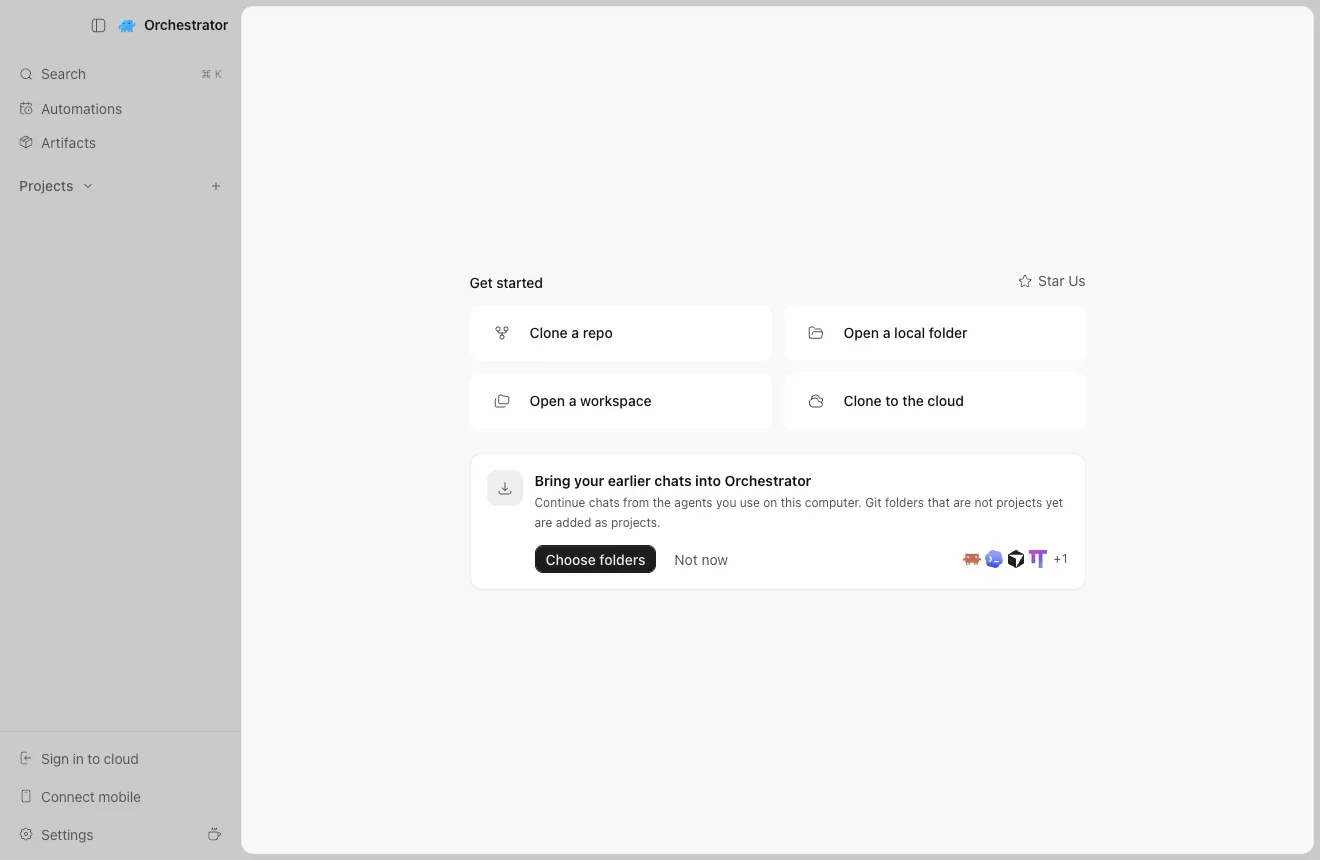
打开 Orchestrator。首次启动时,Home 会提示导入你之前的对话,你选择的每个文件夹都会成为一个项目,并带上它在 Conductor、Claude Code 和 Codex 中的对话。

  1. 点击 Choose folders

    Orchestrator 的 Home,显示 Bring your earlier chats into Orchestrator 卡片和 Choose folders 按钮
    首次启动:Home 会提示导入你之前的对话。
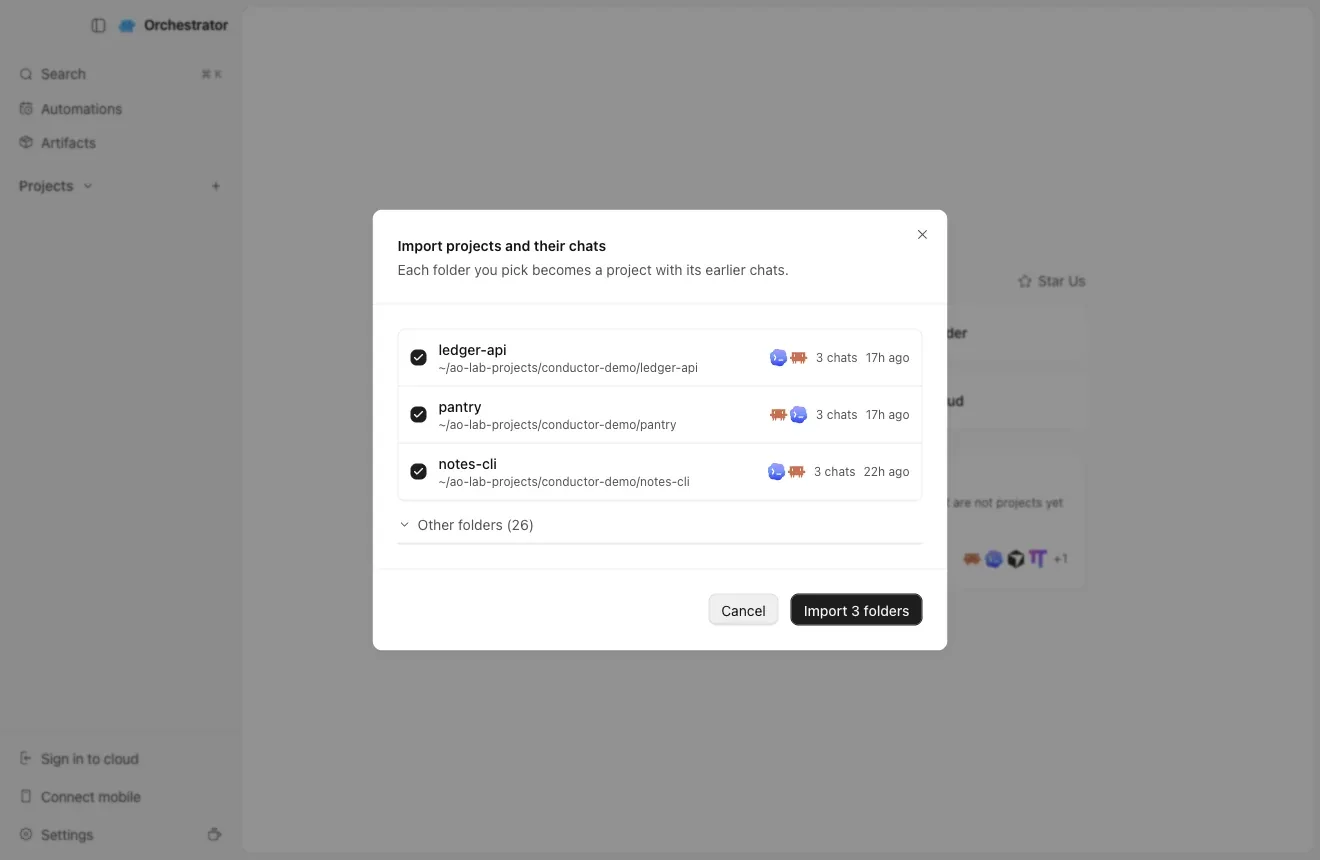
  2. 勾选你在 Conductor 中使用的仓库,然后点击 Import

    请选择仓库文件夹本身,而不是 ~/conductor/workspaces 下的文件夹。

    Import projects and their chats 对话框,已勾选 ledger-api、notes-cli 和 pantry,并有 Import 3 folders 按钮
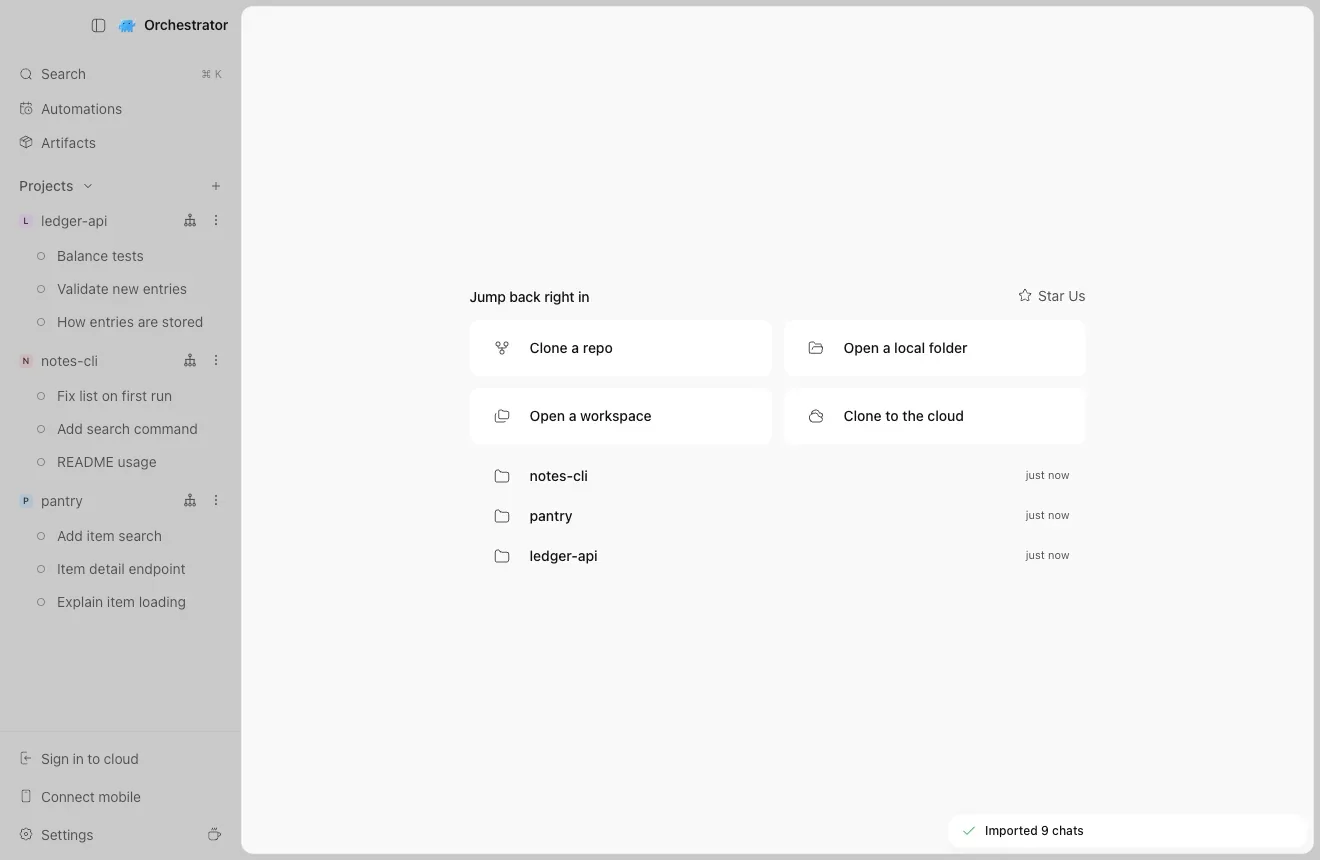
  3. 你的项目和对话已就绪

    对话会保留在 Conductor 中的标题。

    侧边栏显示 ledger-api、notes-cli 和 pantry 三个项目及各自导入的对话,并弹出 Imported 9 chats 提示
    三个仓库,九个对话。
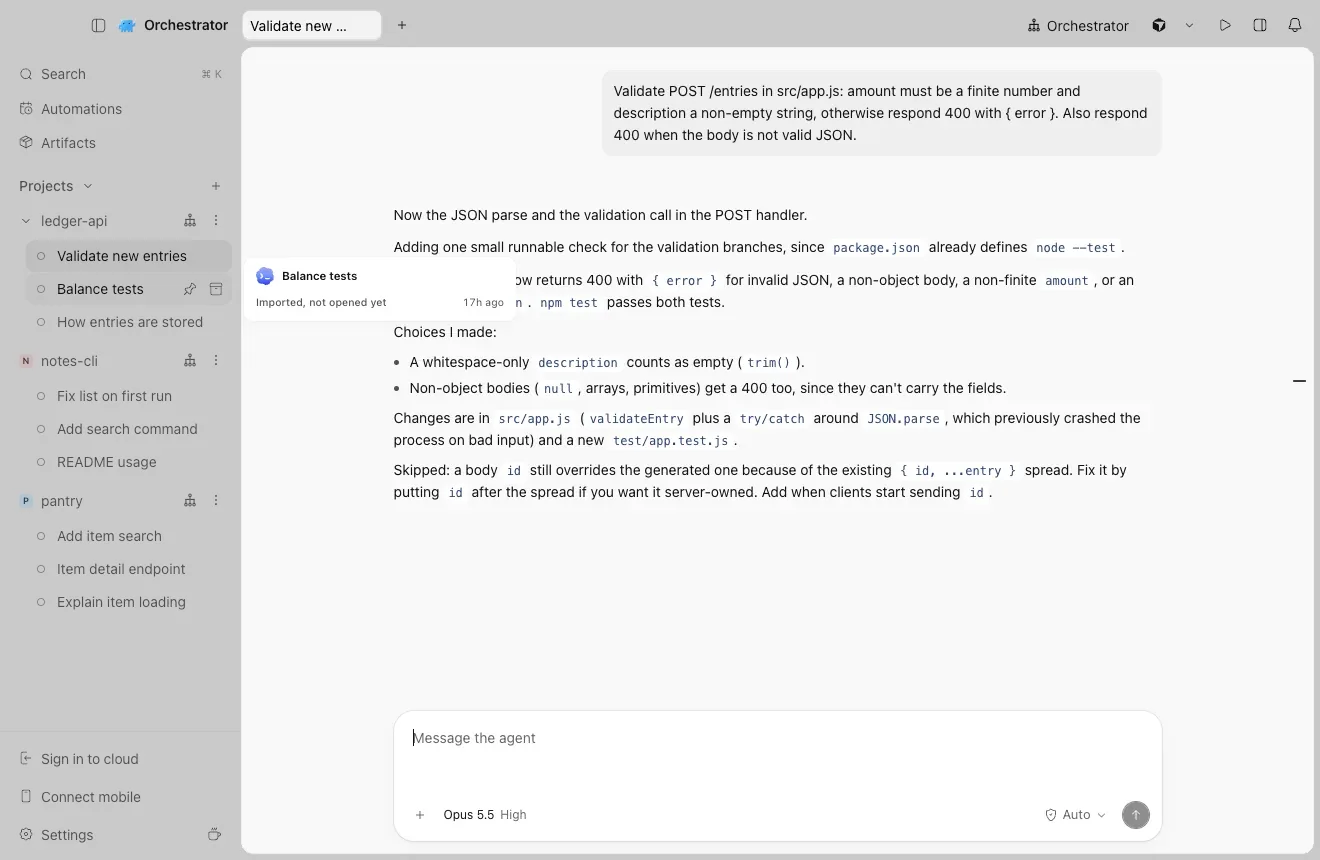
  4. 打开对话,继续工作

    完整的历史记录都在。直接输入即可继续:Claude Code 和 Codex 会接着同一段对话。

    导入的 Claude Code 对话,显示之前的提示和回答,消息框已就绪
    从 Conductor 工作区导入的 Claude Code 对话。

在 Conductor 中归档工作区之前,先导入它的对话,并把每个对话打开一次。第一次打开时,会把工作区中未提交的更改复制到会话里。

我已经在用 Orchestrator 了,导入功能在哪里?

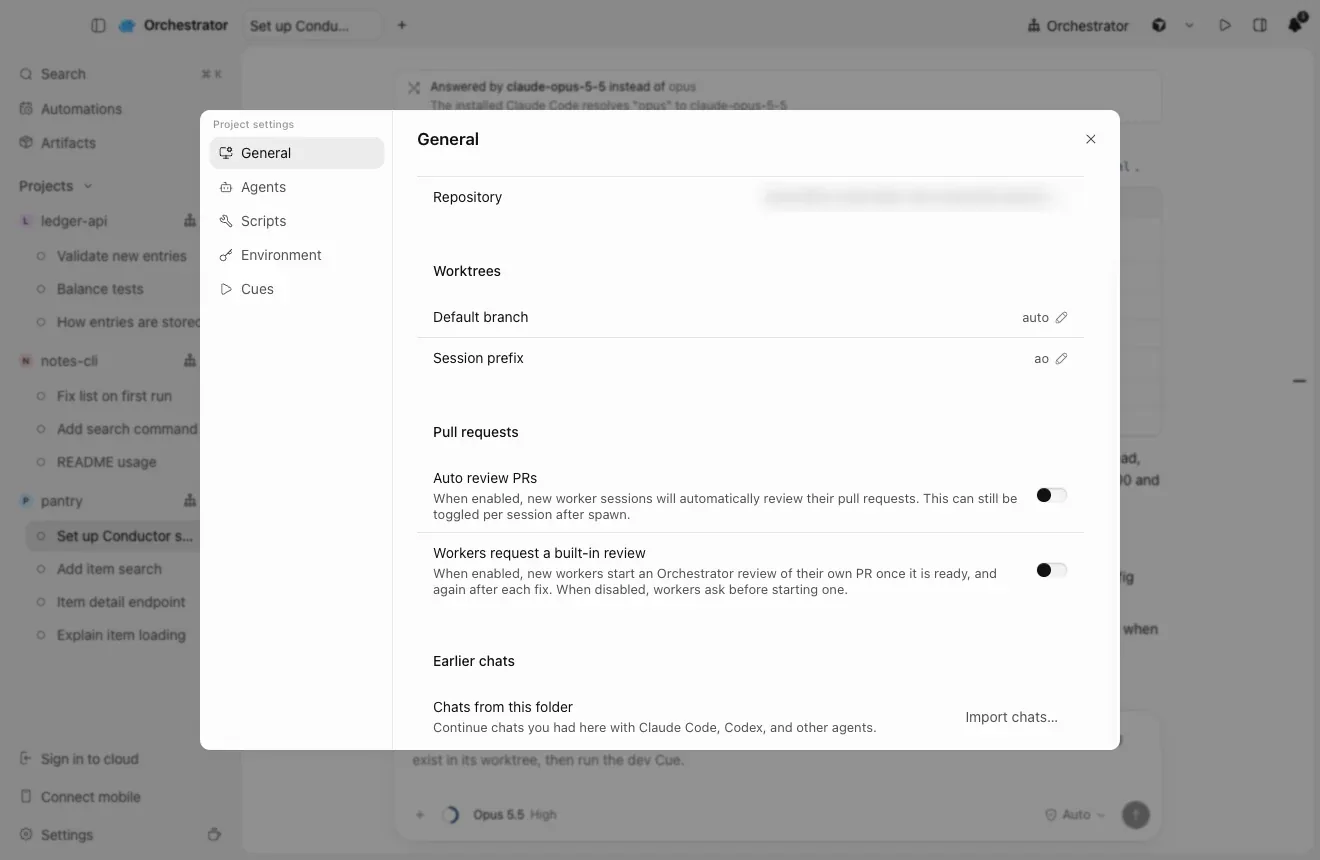
打开项目的 Project settings → General,在 Earlier chats 下选择 Import chats…。如果只想添加仓库而不导入对话,在 Home 上选择 Open a local folder。

  1. 把对话导入已有项目

    在 Orchestrator 中Project settingsGeneralEarlier chatsImport chats…

    Project settings 的 General 标签页,含 Earlier chats 部分和 Import chats 按钮

哪些对话会迁移过来?

你在 Conductor 中的 Claude Code 和 Codex 对话,不论多久以前的。

  • 已归档工作区和你已删除的工作区文件夹中的对话也包括在内。
  • 如果某个 Claude 对话在你 Mac 上的 Claude Code 中没有历史记录(例如从 Cloud 转移过来的对话),会根据 Conductor 自己的历史记录重建。
  • 不包括:你在 Conductor 中删除的对话,以及 Codex 在你 Mac 上已没有历史记录的 Codex 对话。

我的脚本、环境变量和设置会迁移到哪里?

我的设置脚本、运行按钮和环境变量怎么办?

让智能体来做。在项目中新建一个对话,发送下面的提示。它会读取你的 Conductor 设置并展示计划,在你选择 Apply 之前不会做任何更改。

nightly 新功能使用 nightly 版本时,一行就够了:

Set up this project's Conductor settings in Orchestrator.

使用稳定版时,粘贴 Move my Conductor setup。它会逐条写出同样的步骤。Set up Orchestrator 会帮你安装桌面应用。

I'm moving this repository from Conductor to Orchestrator. Set up its Conductor settings in this Orchestrator project. Only read Conductor's files; never change them.
显示完整提示词 · 粘贴到 Claude Code、Codex 或任何编程智能体
I'm moving this repository from Conductor to Orchestrator. Set up its Conductor settings in this Orchestrator project. Only read Conductor's files; never change them.

1. Run `ao project get $AO_PROJECT_ID --json` and `ao cue list --project $AO_PROJECT_ID --json`. Keep everything the project already has.

2. Read these, each later file overriding the earlier ones key by key: ~/.conductor/settings.toml (ignore models), conductor.json in the repository (only if .conductor/settings.toml is missing), .conductor/settings.toml, .conductor/settings.local.toml.

3. Map each setting:
   - scripts.setup -> a Setup step (--post-create)
   - scripts.archive -> a Cleanup step (--pre-remove)
   - each scripts.run action -> a command Cue: ao cue create --project $AO_PROJECT_ID --name <name> --command '<command and its args>' (when cwd is set, work out any port first, then add "cd -- <options.cwd> &&"; skip hidden actions)
   - environment_variables -> --env KEY=VALUE
   - prompts.general -> --agent-rules
   - the ignored files Conductor copies into each workspace (.worktreeinclude, else file_include_globs, else .env*) -> a first Setup step that copies them from "$AO_SOURCE_TREE_PATH" into the new worktree
   - anything else (cloud variables, git branch naming, run mode, other prompts) -> skip it and tell me

4. Orchestrator doesn't set CONDUCTOR_* variables. In Setup and Cleanup steps, replace $CONDUCTOR_ROOT_PATH with $AO_SOURCE_TREE_PATH, $CONDUCTOR_WORKSPACE_PATH with $AO_WORKTREE_PATH and $CONDUCTOR_WORKSPACE_NAME with $(basename "$AO_WORKTREE_PATH"). In a Cue, start the command with WT_ROOT=$PWD (the worktree root) before any cd, and use $WT_ROOT for the workspace path; if the action or the project environment already uses WT_ROOT or WT_PORT, pick other names. Replace $CONDUCTOR_DEFAULT_BRANCH with the branch name written out (the project's default branch; ask me if a command means another one). Replace $CONDUCTOR_PORT with a port worked out from the worktree root: in a Cue, also set WT_PORT=$((10000 + $(printf %s "$WT_ROOT" | cksum | cut -d' ' -f1) % 2270 * 10)) before any cd, and use $WT_PORT where the command used $CONDUCTOR_PORT; in a step, use the same expression with "$AO_WORKTREE_PATH". Both then give the same port for a worktree.

5. Show me the plan first: the Setup and Cleanup steps, Cues, variable names (not their values), agent rules and what you skip. Wait for my OK.

6. --post-create, --pre-remove and --env replace the whole list and --agent-rules the whole text, so pass the existing values together with the new ones in one `ao project set-config $AO_PROJECT_ID` call. Then create the Cues, and tell me to check Project settings -> Scripts, Environment and Cues.
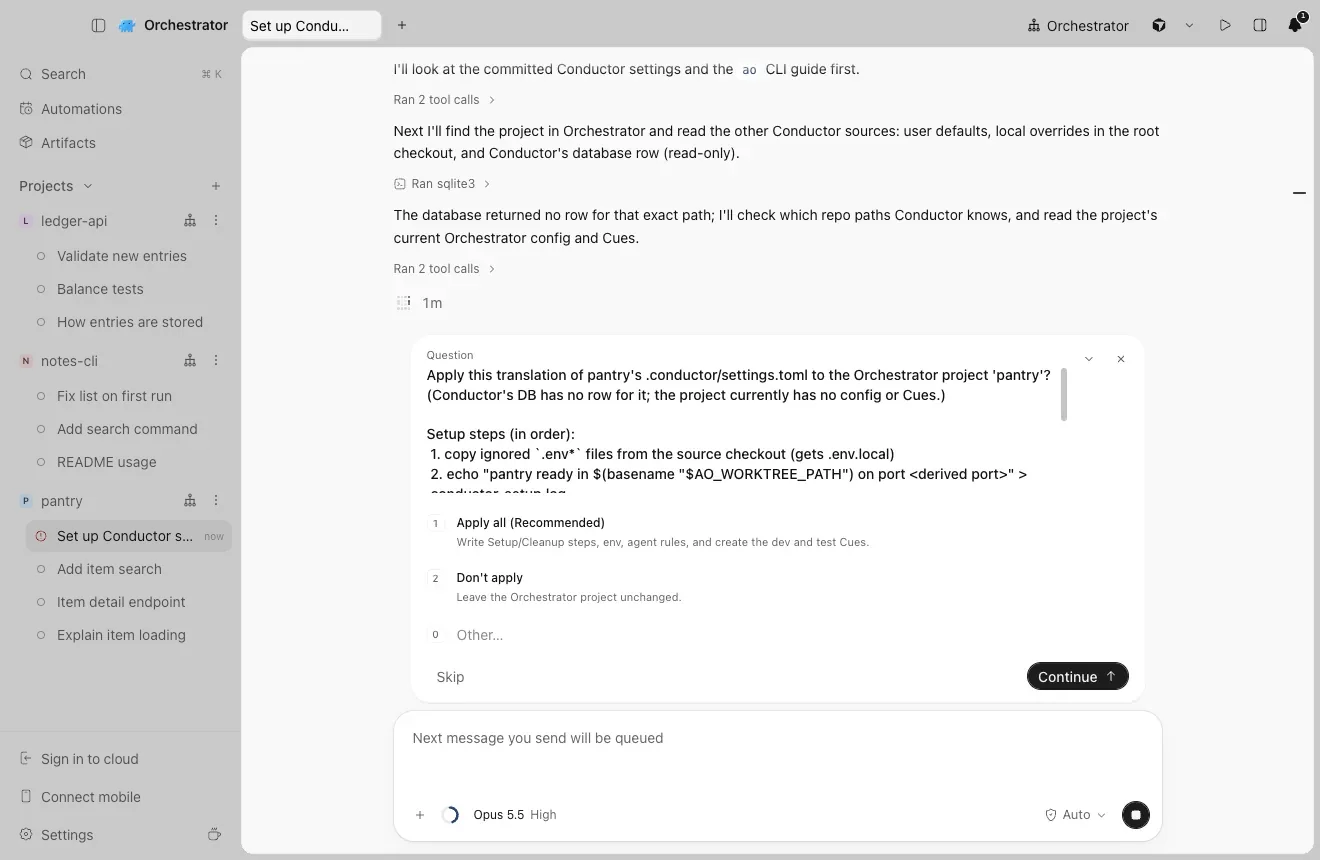
  1. 智能体先展示计划

    它会读取 .conductor/settings.toml、settings.local.toml、conductor.json、~/.conductor/settings.toml 以及 Conductor 应用中保存的脚本。在你选择 Apply 之前,什么都不会改变。

    智能体询问:Apply this translation of pantry's settings? 选项为 Apply all 和 Don't apply
    Setup 和 Cleanup 步骤、Cue、变量和智能体规则,以及跳过的内容。
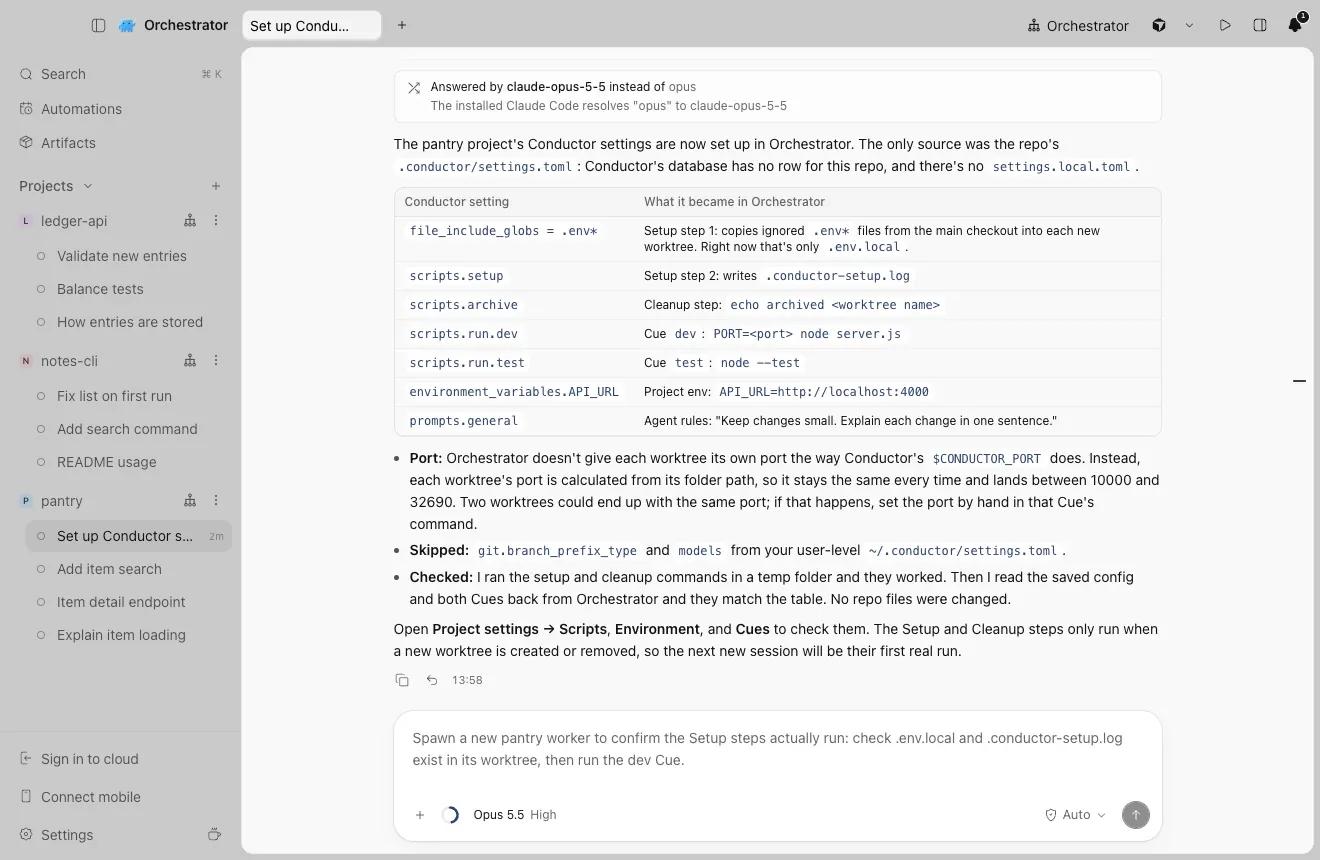
  2. 它执行计划并给出总结

    智能体的总结表,列出每项 Conductor 设置在 Orchestrator 中对应的结果
    每项 Conductor 设置以及转换后的结果。
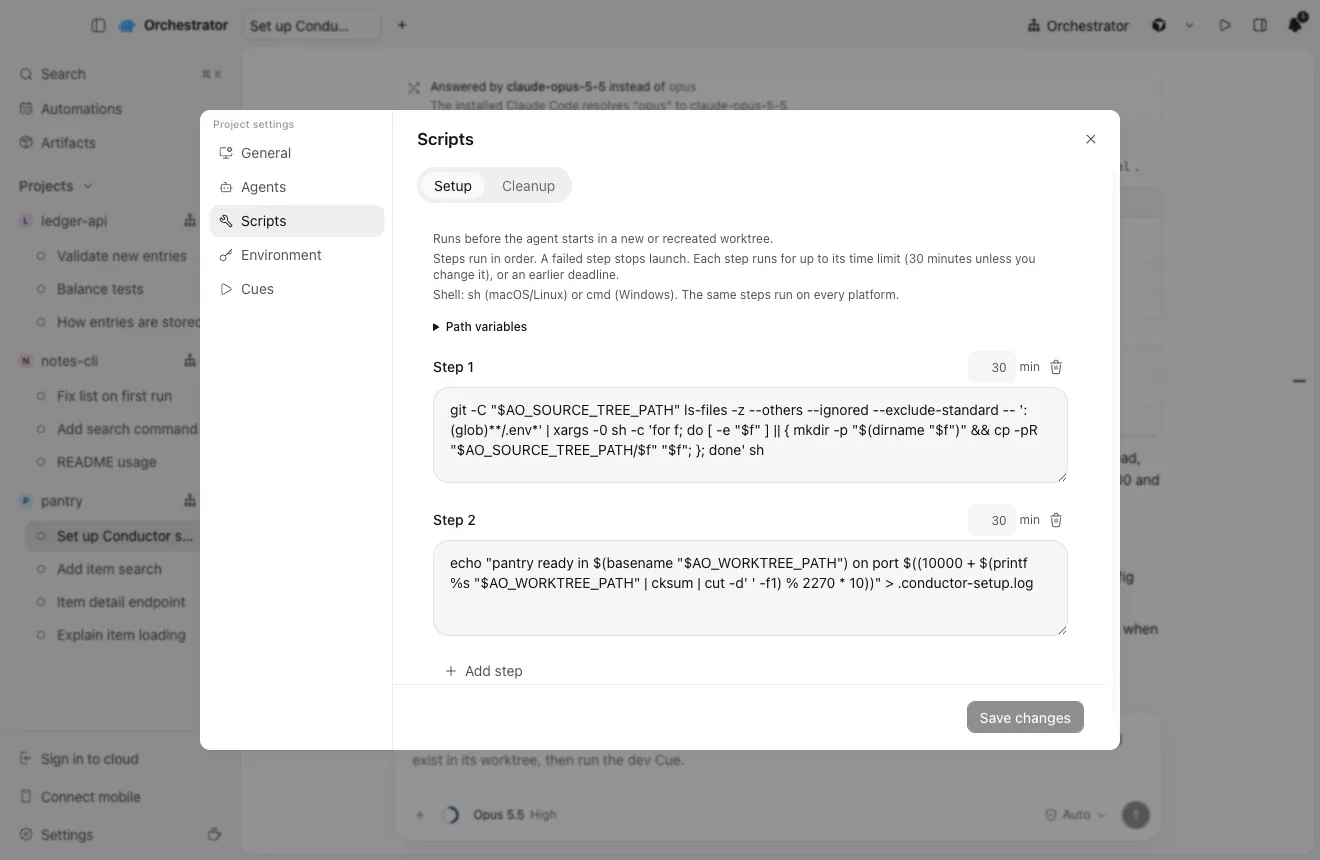
  3. 在 Project settings 中检查结果

    在 Orchestrator 中Project settingsScripts · Environment · Cues

    Scripts 标签页:Setup 第 1 步复制 .env 文件,第 2 步运行设置脚本

每项 Conductor 设置去了哪里?

设置脚本和归档脚本变成 Setup 和 Cleanup 步骤,每个运行操作变成一个命令 Cue,环境变量放进项目的 Environment,通用提示变成智能体规则。

在 Conductor 中在 Orchestrator 中
设置脚本一个 Setup 步骤ao project set-config --post-create
归档脚本一个 Cleanup 步骤ao project set-config --pre-remove
运行操作每项对应一个命令 Cueao cue create --command
环境变量项目的 Environmentao project set-config --env KEY=VALUE
通用提示智能体规则ao project set-config --agent-rules
Conductor 复制到工作区中的 .env 文件一个 Setup 步骤,把它们复制到每个新的 worktree

我的脚本用了 $CONDUCTOR_PORT 和 $CONDUCTOR_WORKSPACE_PATH。

Orchestrator 不会设置 CONDUCTOR_* 变量,所以智能体会改写它们。$CONDUCTOR_WORKSPACE_PATH 改为 $AO_WORKTREE_PATH。对于 $CONDUCTOR_PORT,它会根据 worktree 文件夹推算一个固定端口,就像下面的 dev Cue 那样。如果两个 worktree 得到相同端口,请在那条命令中手动设置端口。

在 Conductor 中在 Orchestrator 中
$CONDUCTOR_ROOT_PATH在 Setup 和 Cleanup 步骤中使用 $AO_SOURCE_TREE_PATH
$CONDUCTOR_WORKSPACE_PATH步骤中用 $AO_WORKTREE_PATH,Cue 中用 $PWD
$CONDUCTOR_WORKSPACE_NAME$(basename "$AO_WORKTREE_PATH")
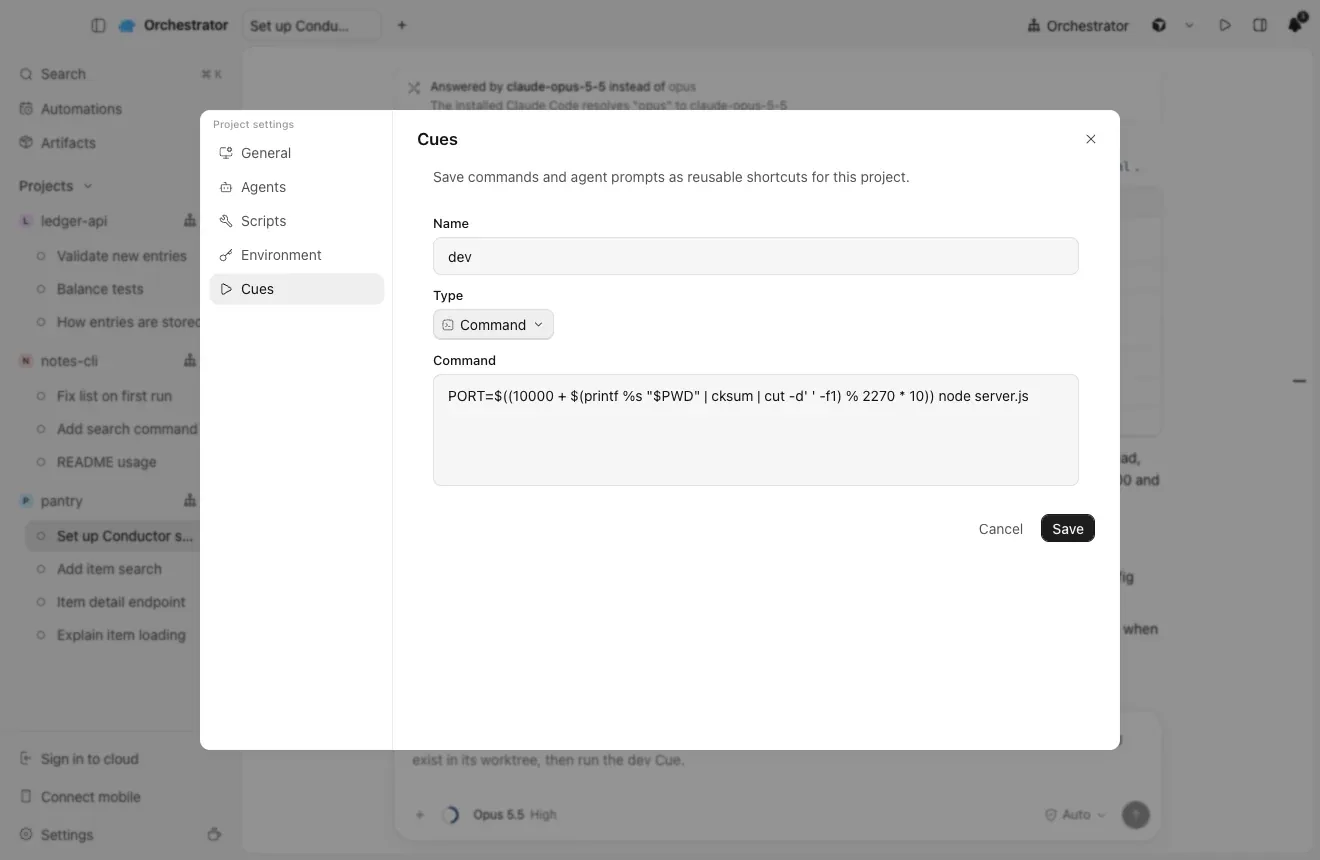
$CONDUCTOR_PORT根据 worktree 文件夹推算出的固定端口
$CONDUCTOR_DEFAULT_BRANCH直接写明项目的默认分支
  1. 一个 Cue,端口根据文件夹推算

    dev Cue:一条命令,在根据 worktree 文件夹推算出的端口上启动服务器

如何让 Cloud 上的工作继续进行?

我在 Conductor Cloud 上的工作怎么办?

用同一个 GitHub 仓库创建 Cloud 项目,把 Cloud 设置复制进去,然后在每个已推送的分支上启动一个会话。

  1. 用同一个 GitHub 仓库创建 Cloud 项目

    在 Orchestrator 中Sign in to cloudClone to the cloud

    登录 Orchestrator,然后选择 Clone to the cloud。和 Conductor Cloud 一样,每个会话都有自己的远程工作区。

    Sign in to cloud 位于侧边栏底部。

  2. 手动把 Cloud 设置复制到 Project settings

    用 $AO_WORKTREE_PATH 替换 $CONDUCTOR_ROOT_PATH 和 $CONDUCTOR_WORKSPACE_PATH,用 $AO_SESSION_ID 替换 $CONDUCTOR_WORKSPACE_NAME。Conductor Cloud 运行的是 Amazon Linux,所以请检查 dnf install 之类的命令。

  3. 从上次中断的地方继续

    在每个已推送的分支上启动一个会话。对于已转移到 Mac 的工作区,按第 02 节的方法导入它们的对话。仍在 Conductor Cloud 中的对话无法继续,所以请保留导出的数据。

每项 Conductor Cloud 设置的去向

在 Conductor Cloud 中在 Project settings 中
Cloud Computer 安装脚本,然后是仓库的设置脚本Scripts → Setup
归档脚本Scripts → Cleanup
Cloud 环境变量和密钥Environment
运行操作每项对应一个 Cue
通用提示Instructions

Orchestrator Cloud 能给我什么?

Orchestrator Cloud 在云端沙箱中运行你的智能体,合上笔记本后工作仍会继续。它是一款独立产品,而不是 Conductor Cloud 的翻版。

  • 合上笔记本,智能体照样运行

    每个云端会话都在 Freestyle 或 Coder(包括你自己部署的 Coder)上的独立沙箱中运行。空闲的沙箱会暂停,你回来时再恢复。

  • 智能体照常用,登录凭据不进沙箱

    Claude Code、Codex、Cursor 和 OpenCode 在云端运行。智能体的登录凭据由 Orchestrator 的服务器保管,模型通过代理访问,因此长期有效的登录凭据永远不会留在沙箱中。

  • 云端的编排智能体

    你不在时,它会启动工作会话、向其发消息、停止会话,并为它们创建 Pull Request。

  • 从 Issue 到合并

    符合条件的 GitHub Issue 可以启动工作会话。“Automatically fix CI failures”和“Automatically fix review comments”让 PR 持续推进,合并请求则等待“Approve and merge”或“Reject”。

  • 你的配置,在云端同样适用

    同样的 Setup 和 Cleanup 脚本也在云端沙箱中运行,一个项目可以包含多个仓库,也可以不含仓库。

限制和价格见价格页面。

团队与手机

我们在 Conductor 里共享对话,我还在用 iOS 应用。

Orchestrator Cloud 会话可以与队友共享,iOS 和 Android 版 Orchestrator 移动应用可以连接你的电脑,Automations 可以按计划运行会话。

在 Conductor 中在 Orchestrator 中
共享对话和在线状态用 Share session 共享会话,可设为仅查看或可编写,也可以共享整个项目。队友会在 Shared with you 下找到它。登录后,Share 按钮位于 Cloud 会话的顶部栏。
Reassign to共享对话中的 Request turn 和 Take over
iOS 应用Connect mobile,配合 iOS 或 Android 版 Orchestrator 应用
例行任务自动化

共享功能适用于 Orchestrator Cloud 会话,并且需要所有人都登录 Orchestrator。

  1. iOS 应用:Connect mobile

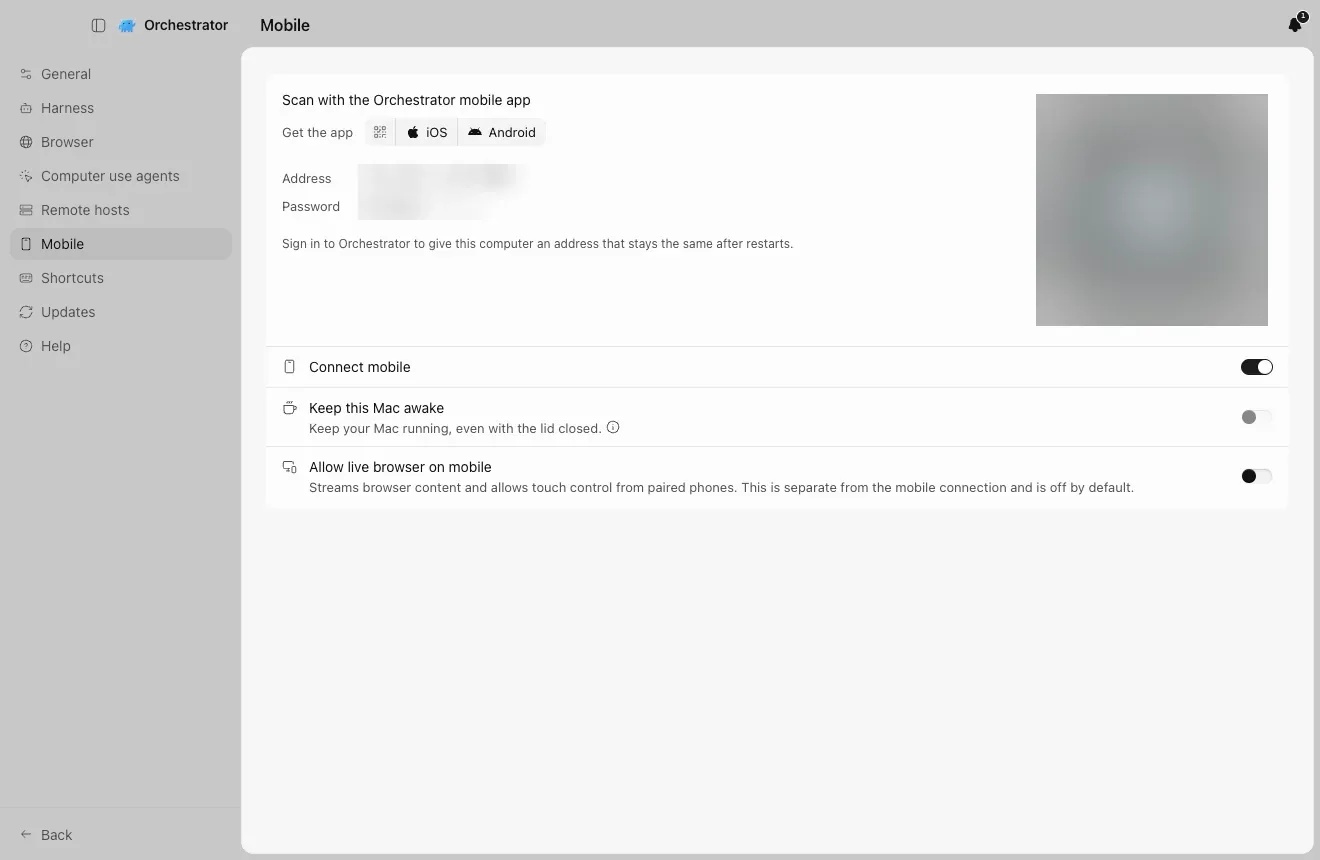
    点击侧边栏中的 Connect mobile,然后用 iOS 或 Android 版 Orchestrator 移动应用扫描二维码。

    Settings、Mobile:用 Orchestrator 移动应用扫描,二维码、地址和密码已模糊处理
    此截图中的二维码、地址和密码已模糊处理。
  2. 例行任务:Automations

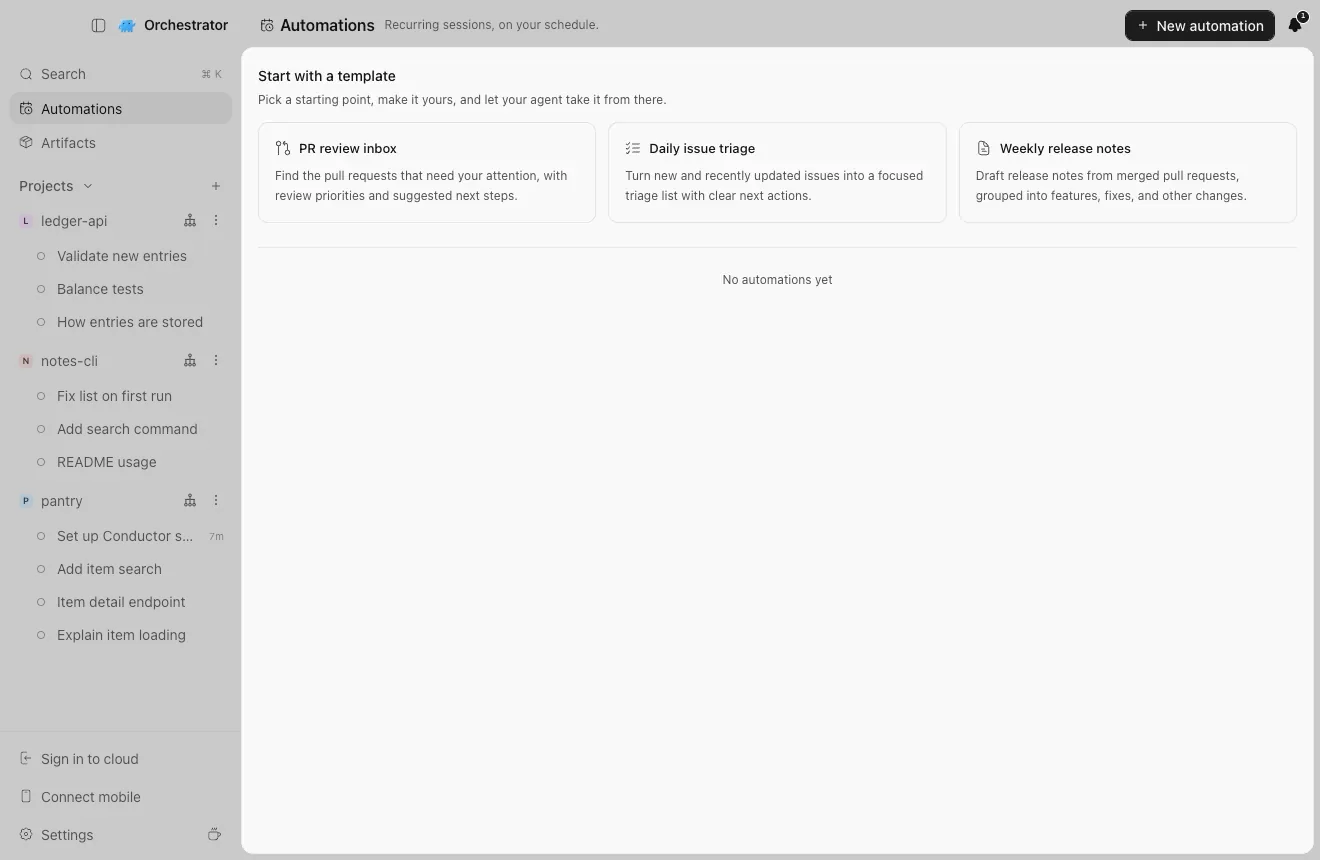
    按你的计划定期运行的会话。可从模板或 New automation 开始。

    Automations 页面,包含模板和 New automation 按钮
    Automations 位于侧边栏。

快速解答

Conductor 要关闭了吗?

Conductor 于 2026 年 11 月 4 日宣布加入 Meta。Conductor Cloud 将于 11 月 13 日变为只读,并于 2026 年 11 月 20 日关闭。本地 Mac 应用目前仍可使用,将从 2027 年初开始逐步停止。

Conductor Cloud 什么时候关闭?我的数据会怎样?

Conductor Cloud 将于 2026 年 11 月 13 日(周五)变为只读,并于 11 月 20 日(周五)关闭,届时 Conductor 开始删除 Cloud 数据。请在 11 月 13 日之前推送你的分支、转移想保留的工作区并导出数据。

可以导入我的 Conductor 对话吗?

可以,在 Mac 上。Orchestrator 会导入你在 Conductor 中的 Claude Code 和 Codex 对话,无论多久以前的都可以,每个对话都会成为一个可以继续的会话。对话导入是 nightly 版本中的新功能。如果 Codex 在你的 Mac 上已没有某个 Codex 对话的历史记录,该对话不会导入。

如何迁移 Conductor 的 setup 脚本和环境变量?

把本页的提示发给你的智能体。它会读取你的 Conductor 设置并展示计划。你同意后,setup 和归档脚本会变成 Setup 和 Cleanup 步骤,运行操作会变成 Cues,环境变量会放入项目的 Environment。

Orchestrator 支持 Windows 和 Linux 吗?

支持。Orchestrator 可在 macOS、Windows 和 Linux 上运行。Conductor 对话导入和 Conductor 本身一样仅限 Mac,因此在 Windows 或 Linux 上请设置相同的仓库,并继续你已推送的分支。

Orchestrator 免费且开源吗?

桌面应用免费开源(Apache-2.0),本地智能体数量不限。Orchestrator Cloud 的 Starter 为 $20/月,Pro 为 $40/月,Enterprise 按需报价。在外出时通过托管 HTTPS 隧道用手机连接你的电脑,需要 Starter 或更高方案。

Orchestrator 会修改我的 Conductor 文件吗?

不会。它只读取 Conductor 的文件和数据库。帮你设置的智能体同样只读取它们。

我的 Conductor 工作区会被移动吗?

不会。Orchestrator 会为每个会话创建自己的 worktree 和分支,你的 Conductor 工作区保持原样。

智能体会跳过什么?

没有本地对应项的设置,例如仅限 Cloud 的变量、Git 分支命名、运行模式以及 Conductor 的模型选择。在你应用之前,它会列出跳过的每一项。

Orchestrator 是 Claude 套壳吗?

不是。它通过你已安装并登录的 CLI 运行 38 款编程智能体,用量由你自己的服务商账号计费。

Orchestrator 截图摄于 2026 年 11 月 11 日,使用的是一个演示用 Conductor 数据库,包含三个仓库和九个 Claude Code 与 Codex 对话。Conductor 的菜单路径来自 Conductor 0.93.0 的更新日志。

帮助

请在 Orchestrator Discord 提问。

整个团队一起迁移?与创始人预约一次设置通话,Orchestrator 团队会和你一起完成设置。